How to Fix WordPress 500 Internal Server Errors: Causes and Solutions
A 500 Internal Server Error is one of the most frustrating problems a WordPress website owner can encounter.
Instead of your homepage, blog post, news article, or WordPress dashboard, visitors may see a message such as:
“500 Internal Server Error”
For bloggers, content creators, and news publishers, this can be particularly serious. If your website is unavailable, visitors cannot read your content, advertisers may be affected, and you may be unable to publish new articles.
The good news is that a WordPress 500 Internal Server Error does not necessarily mean your website is permanently damaged. In many cases, the problem is caused by a plugin, theme, PHP configuration, corrupted .htaccess file, insufficient server resources, or another server-side issue.
In this guide, we’ll explain what a WordPress 500 Internal Server Error means, the most common causes, and step-by-step ways to fix it.
What Is a WordPress 500 Internal Server Error?
A 500 Internal Server Error is a general server-side error.
It means that the web server encountered an unexpected problem while trying to process a request.
Unlike a simple broken link, the problem is usually not caused by the visitor’s browser.
On a WordPress website, the error can appear because of problems involving:
- WordPress plugins
- Themes
- PHP
.htaccess- Server configuration
- Memory limits
- File permissions
- Database-related problems
- Hosting resource limitations
- Corrupted or incompatible files
The exact cause is not always displayed on the error page, which is why troubleshooting may require checking several areas.
Common Symptoms of a WordPress 500 Error
Your website may display:
- 500 Internal Server Error
- HTTP 500 Error
- Internal Server Error
- The server encountered an internal error
- This page isn’t working
- HTTP ERROR 500
Sometimes the homepage works while individual articles fail.
In other situations, the entire website—including /wp-admin/—may become inaccessible.
A 500 error can also appear immediately after installing a plugin, changing a theme, updating WordPress, changing PHP settings, or modifying server configuration.
1. Clear Your Browser and Website Cache
Before making major changes, perform a basic test.
Clear your browser cache and try opening the website in:
- A private/incognito window
- Another browser
- Another device
- A different internet connection
If you use a WordPress caching plugin, CDN, or server-level caching, clear those caches as well.
Sometimes an old error page may continue to be displayed because a cached version is being served.
However, if the 500 error persists across different devices and browsers, the problem is more likely to be on the server or WordPress installation.
2. Disable Your WordPress Plugins
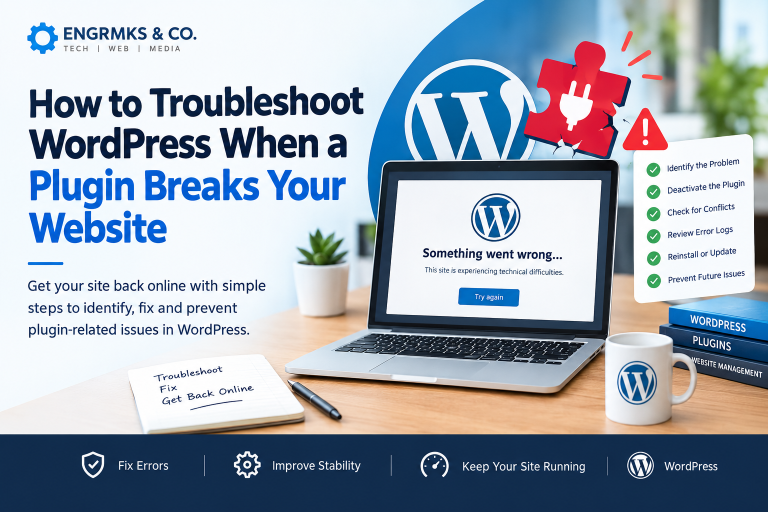
One of the most common causes of WordPress errors is a plugin conflict.
This can happen when:
- A plugin is incompatible with your PHP version.
- A plugin conflicts with another plugin.
- A plugin is poorly coded.
- An update introduces a bug.
- A plugin requires more server resources than are available.
If you can access WordPress Dashboard
Go to:
Plugins → Installed Plugins
Deactivate your plugins one at a time.
After deactivating each plugin, check your website.
If the website starts working after a particular plugin is disabled, you may have identified the source of the problem.
What if you cannot access wp-admin?
You can disable plugins through your hosting control panel or FTP.
Using the File Manager in cPanel, for example, navigate to:
public_html/wp-content/
Then locate:
plugins
You can temporarily rename it to something such as:
plugins-disabled
WordPress will no longer be able to load the plugins normally.
If your website starts working, rename the folder back to plugins and then investigate the plugins individually.
Always make a backup before making significant changes.
3. Switch to a Default WordPress Theme
Your WordPress theme can also cause a 500 Internal Server Error.
This may happen after:
- Installing a new theme.
- Updating a theme.
- Editing theme PHP files.
- Adding custom code.
- Using an outdated theme with a newer PHP version.
If you can access the dashboard, temporarily switch to a default WordPress theme.
If you cannot access WordPress, you can change the active theme through the database or hosting tools, but this is more advanced and should be done carefully.
If switching themes fixes the problem, investigate your previous theme and its customizations.
4. Check Your .htaccess File
A corrupted or incorrectly configured .htaccess file can cause a 500 error.
This file is commonly found in your WordPress root directory.
For many WordPress installations, this is:
public_html/.htaccess
How to test it
Using your hosting File Manager:
- Locate
.htaccess. - Create a backup copy.
- Rename it temporarily to something such as
.htaccess-old. - Test your website.
If the website starts working, the .htaccess file may have contained an incorrect rule.
Generate a new .htaccess
If you regain access to WordPress:
Go to:
Settings → Permalinks

Then click:
Save Changes
WordPress can regenerate the standard rewrite rules.
Do not blindly copy .htaccess code from an unknown website. Custom rules may be required by your hosting environment, security system, caching setup, or other applications.
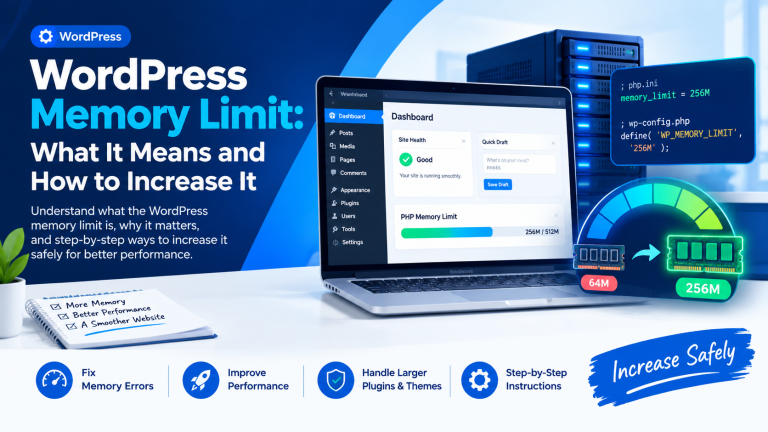
5. Increase the WordPress PHP Memory Limit
A website can encounter a 500 error when a process requires more memory than the server or PHP configuration allows.
This can happen on resource-intensive websites, particularly large news websites with:
- Many plugins.
- Heavy themes.
- Page builders.
- Large databases.
- Image-processing tools.
- Multiple background processes.
Depending on your hosting environment, the PHP memory limit may be adjustable through your hosting control panel, PHP configuration, or WordPress configuration.
For example, a WordPress installation may contain a setting such as:
WP_MEMORY_LIMIT
However, increasing WordPress’s memory setting does not override a lower limit imposed by the hosting server.
If your website repeatedly reaches memory limits, speak to your hosting provider rather than simply increasing the number indefinitely.
6. Check Your PHP Version
PHP is the server-side programming language used by WordPress.
An outdated PHP version can cause compatibility, security, and performance problems.
On the other hand, immediately upgrading to a very new PHP version can sometimes expose compatibility problems with an old plugin or theme.
What should you do?
Check your hosting control panel or WordPress Site Health information to determine your current PHP version.
If the 500 error started immediately after changing PHP versions, compatibility should be investigated.
For a production website, especially a busy news website, test major PHP changes carefully and maintain a backup before switching versions.
7. Check the Server Error Logs
If the previous steps do not identify the problem, error logs are one of the most useful places to look.
Your hosting provider may provide an error log through:
- cPanel
- Hosting dashboard
- Server control panel
- PHP logs
- Apache logs
- Nginx logs
The log may identify the exact PHP file, plugin, theme, or server process causing the error.
For example, an error log may reveal that a specific plugin is generating a fatal PHP error.
Instead of guessing which plugin is responsible, you can investigate the exact file mentioned in the log.
8. Enable WordPress Debugging
WordPress includes debugging functionality that can help identify PHP errors.
For troubleshooting, WordPress debugging can be enabled through wp-config.php.
A typical configuration may include:
define( 'WP_DEBUG', true );
define( 'WP_DEBUG_LOG', true );
define( 'WP_DEBUG_DISPLAY', false );
This configuration can record errors in a debug log without displaying sensitive technical information publicly.
The log is commonly located at:
wp-content/debug.log
Important security warning
Do not leave debugging settings unnecessarily exposed on a live production website.
Displaying PHP errors publicly can reveal technical information that should not be visible to visitors.
Once troubleshooting is complete, review your debugging configuration and disable unnecessary debugging.
9. Check File and Folder Permissions
Incorrect file permissions can prevent WordPress or the server from accessing required files.
This can happen after:
- Manual file uploads.
- Website migrations.
- Restoring backups.
- Changing hosting providers.
- Extracting files incorrectly.
- Running certain automated processes.
If you suspect permissions are causing the problem, ask your hosting provider to review the permissions rather than changing large numbers of files randomly.
Incorrect permissions can create both functionality and security problems.
10. Check Your Hosting Resource Usage
Your website may be hitting its hosting limits.
This is especially important for news publishers because traffic can suddenly increase when an article goes viral or a major story breaks.
Your hosting account may have limits involving:
- CPU
- RAM
- Entry processes
- PHP workers
- Disk space
- I/O
- Database resources
If your website works normally during quiet periods but repeatedly produces errors when traffic increases, resource limitations should be investigated.
Possible solutions
You may need to:
- Optimize plugins.
- Improve caching.
- Optimize the database.
- Use a CDN.
- Reduce expensive background tasks.
- Optimize the theme.
- Upgrade your hosting plan.
11. Restore a Recent Backup
If the 500 error started immediately after a change, restoring a known-good backup may be an option.
For example, the problem may have appeared after:
- Installing a plugin.
- Updating a theme.
- Updating WordPress.
- Changing PHP.
- Editing code.
- Modifying
.htaccess.
If you have a recent backup from before the problem occurred, restoration may bring the website back online.
However, make sure you understand what data may have been created after the backup.
For an active news website, restoring an old backup could potentially remove recently published articles, comments, user accounts, or other changes.
Take a backup of the current state before performing a restoration whenever possible.
12. Check Recent Code Changes
If you recently added custom PHP code to:
functions.php- A custom plugin
wp-config.php.htaccess- Another server configuration file
that change may be responsible.
A single PHP syntax error can prevent WordPress from processing a request correctly.
If the problem began immediately after adding code, temporarily revert the change and test again.
For production websites, avoid experimenting directly with critical PHP files without a backup.
13. Check for Corrupted WordPress Files
WordPress core files can occasionally become corrupted or incomplete.
This may happen because of:
- Interrupted updates.
- Failed migrations.
- Incorrect file transfers.
- Server problems.
- Accidental deletion.
If WordPress core files are suspected, consider reinstalling the WordPress core files through the dashboard or another appropriate method.
Do not replace your entire WordPress installation blindly.
Your wp-content directory and configuration files contain important website data and customizations.
14. Check Your Database
Database problems can also contribute to WordPress errors.
Potential issues include:
- Corrupted tables.
- Database connection problems.
- Excessive database queries.
- Insufficient database resources.
- Plugin-related database errors.
If WordPress displays a database-related error instead of a generic 500 error, investigate the database connection and server configuration.
For more complicated database problems, contact your hosting provider or a qualified WordPress developer.
Always create a database backup before performing database repairs.
15. Contact Your Hosting Provider
Sometimes the problem is outside WordPress itself.
Your hosting company may be able to identify:
- Server failures.
- PHP errors.
- Resource limits.
- Firewall problems.
- Permission problems.
- Database issues.
- Configuration errors.
- Recent server changes.
When contacting support, provide useful information such as:
- The exact error message.
- When the problem started.
- Whether the entire website is affected.
- Whether wp-admin works.
- Recent changes you made.
- The affected URL.
- Relevant error-log information.
This can significantly speed up troubleshooting.
How to Prevent WordPress 500 Errors
You cannot guarantee that your website will never experience a server error, but you can reduce the risk.
Keep WordPress Updated
Regularly update WordPress, themes, and plugins.
Use Reliable Plugins
Install plugins from reputable sources and remove plugins you no longer need.
Maintain Backups
Maintain regular, tested backups of your website and database.
Monitor Your Hosting
Pay attention to CPU, memory, disk space, and other resource limits.
Use a Staging Website
Test major updates on a staging environment before applying them to a busy production website.
Monitor Your Website
Use website monitoring tools so you can discover downtime quickly.
Avoid Unnecessary Custom Code
Poorly written PHP code can create serious WordPress problems.
Quick WordPress 500 Error Troubleshooting Checklist
If your website suddenly displays a 500 Internal Server Error, work through this list:
- Refresh the website.
- Test using another browser.
- Clear website and CDN caches.
- Check whether
/wp-admin/works. - Disable recently installed plugins.
- Disable all plugins temporarily if necessary.
- Switch to a default theme.
- Check
.htaccess. - Check PHP version.
- Check PHP memory limits.
- Review server error logs.
- Check WordPress debug logs.
- Check hosting resource usage.
- Review recent code changes.
- Check file permissions.
- Check the database.
- Restore a backup if appropriate.
- Contact your hosting provider.
What News Publishers Should Do When a 500 Error Occurs
For a normal blog, a few hours of downtime can be frustrating.
For a news publisher, it can be much more serious.
A news website may receive large traffic spikes during breaking news events. If the hosting environment cannot handle the sudden demand, visitors may encounter errors precisely when traffic is highest.
News publishers should therefore consider:
- Reliable hosting.
- Proper caching.
- CDN infrastructure.
- Image optimization.
- Database optimization.
- Regular backups.
- Website monitoring.
- Resource monitoring.
- A staging environment.
- A disaster-recovery plan.
It is also important to keep a record of recent changes.
If the website breaks after a plugin update, theme change, PHP upgrade, or server migration, knowing exactly what changed can dramatically reduce troubleshooting time.
Frequently Asked Questions
What causes a 500 Internal Server Error in WordPress?
Common causes include plugin conflicts, theme problems, PHP errors, corrupted .htaccess files, insufficient memory, hosting resource limits, incorrect file permissions, database problems, and server configuration issues.
How do I fix a 500 error in WordPress?
Start by checking recent changes, disabling plugins, testing the theme, checking .htaccess, reviewing PHP and server error logs, checking resource limits, and restoring a backup if necessary.
Can a WordPress plugin cause a 500 error?
Yes. A plugin can cause a fatal PHP error, conflict with another plugin or theme, or consume excessive server resources.
Why does my WordPress website show a 500 error after an update?
An update can expose compatibility problems between WordPress, a plugin, theme, or PHP version. Check the server and WordPress error logs and investigate the component that was updated immediately before the problem appeared.
Can a 500 error damage my WordPress website?
A 500 error is an indication that the server could not successfully process a request. The error itself does not necessarily mean your website data has been permanently damaged, but prolonged downtime can affect visitors and business operations.
Why does my homepage work but my WordPress posts show a 500 error?
This can happen when a specific template, plugin, database query, permalink rule, or piece of content triggers the error. Compare a working URL with an affected URL and review the server logs for clues.
Final Thoughts
A WordPress 500 Internal Server Error can look frightening, but it is often fixable.
The most important thing is not to start randomly deleting plugins or WordPress files.
Instead, troubleshoot systematically.
Start with recent changes, plugins, themes, .htaccess, PHP configuration, server resources, and error logs. If the problem is related to hosting, your hosting provider may be able to identify the underlying server issue.
For content creators, bloggers, and news publishers, regular backups and website monitoring are particularly important. Your website is not simply a collection of pages—it may be your primary publishing platform, business asset, advertising platform, and connection to your audience.
When something goes wrong, having a recent backup, reliable hosting, proper monitoring, and a documented troubleshooting process can make the difference between a short interruption and prolonged downtime.
Don’t panic when you see a WordPress 500 error. Find the cause, fix the underlying problem, test the website, and put preventative measures in place.