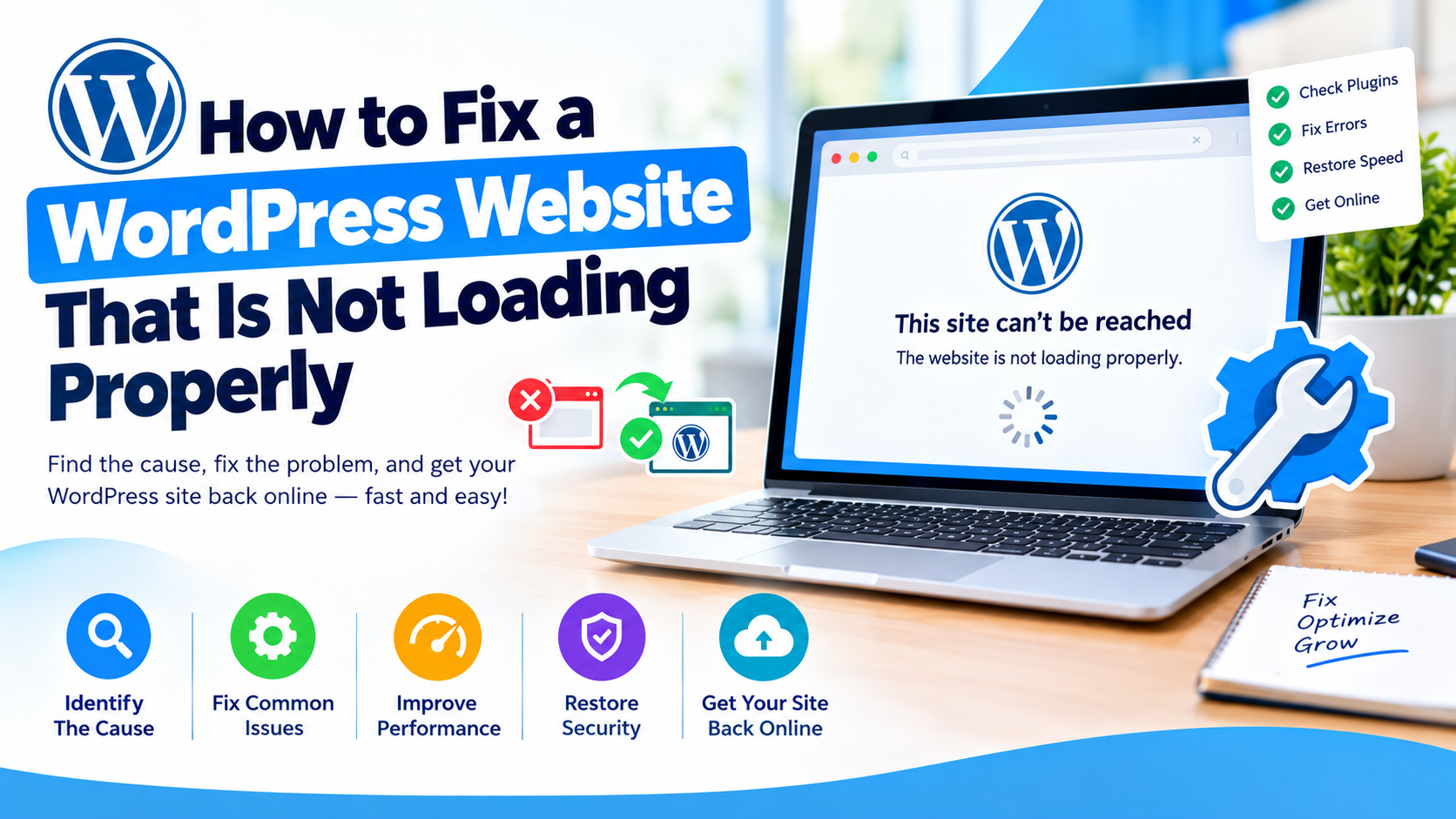
How to Fix a WordPress Website That Is Not Loading Properly
Is your WordPress website not loading properly? Perhaps the homepage is showing a blank screen, the layout is broken, images are missing, or the website keeps loading without displaying the content. In some cases, the entire website may be unavailable while the WordPress dashboard continues to work—or both the website and admin area may be inaccessible.
These problems can be frustrating, but they do not necessarily mean that your WordPress website is permanently damaged.
A WordPress website can stop loading properly for many reasons, including plugin conflicts, theme problems, PHP errors, hosting issues, database failures, SSL configuration, DNS problems, caching, or insufficient server resources.
The key is to troubleshoot the problem systematically rather than making several changes at once.
This guide explains how to fix a WordPress website that is not loading properly and how to prevent similar problems in the future.
Why Is My WordPress Website Not Loading Properly?
There is no single cause of WordPress loading problems. The issue can occur at different levels of your website infrastructure.
Common causes include:
- Plugin conflicts
- Theme errors
- Failed WordPress updates
- PHP compatibility problems
- Insufficient PHP memory
- Hosting resource limitations
- Database connection problems
- Corrupted
.htaccessrules - SSL or HTTPS configuration errors
- DNS problems
- CDN or caching conflicts
- Incorrect file permissions
- Broken JavaScript or CSS
- Malware or security issues
The first step is to identify exactly what is happening when you visit the website.
Common WordPress Loading Problems
Before trying a solution, identify the type of problem you are experiencing.
Blank White Screen
A completely blank page can be caused by a PHP fatal error, plugin conflict, theme problem, or insufficient memory.
500 Internal Server Error
A 500 error generally indicates a server-side problem. It can be related to PHP, .htaccess, plugins, themes, or server configuration.
Website Loads Without CSS
If the text appears but the design is missing, the browser may not be loading your CSS files correctly. Incorrect URLs, SSL problems, caching, CDN settings, and theme issues can cause this.
Images Are Missing
Broken images can result from incorrect media URLs, missing files, permissions, SSL mixed content, CDN problems, or a failed migration.
Website Keeps Loading
If the browser continuously displays a loading indicator, JavaScript errors, server delays, external scripts, database queries, or third-party services may be responsible.
“Error Establishing a Database Connection”
This means WordPress cannot communicate correctly with its database. Hosting problems, incorrect database credentials, database server failures, or corrupted databases can cause this error.
How to Fix a WordPress Website That Is Not Loading Properly
1. Check If the Problem Is Affecting Everyone
Before making changes to WordPress, determine whether the problem affects only your computer or everyone visiting the website.
Try opening the website using:
- Another browser
- A private/incognito window
- A different device
- A different internet connection
If the website works elsewhere, your browser cache, DNS cache, network, or local configuration could be responsible.
If it fails everywhere, the problem is more likely to be related to WordPress, hosting, DNS, or the server.
2. Check Your Hosting Account
Your hosting server should be one of the first things you investigate when a WordPress website suddenly stops loading.
Log in to your hosting control panel and check:
- Disk space
- CPU usage
- RAM usage
- Inode usage
- PHP version
- Error logs
- Database availability
- Server status
If your hosting account has reached its resource limits, the website may become extremely slow or stop responding.
This is particularly common on shared hosting when a website receives a sudden increase in traffic or uses resource-intensive plugins.
If the hosting server is experiencing an outage, changing WordPress files will not solve the problem. Contact your hosting provider and ask them to check the server.
3. Clear WordPress and Browser Cache
Caching is useful for improving website performance, but cached files can sometimes cause visitors to see an outdated or broken version of a website.
Clear the cache from your:
- WordPress caching plugin
- Hosting server
- CDN
- Web browser
If you use a service such as Cloudflare, check its cache and optimization settings as well.
After clearing the cache, open the website in a private browser window and test it again.
4. Disable WordPress Plugins
A plugin conflict is one of the most common reasons a WordPress website stops working properly.
The problem may begin immediately after:
- Installing a new plugin
- Updating a plugin
- Updating WordPress
- Changing PHP versions
- Installing a caching plugin
- Adding a security plugin
If you can access the WordPress dashboard, go to:
Plugins → Installed Plugins
Deactivate the plugins temporarily.
Then check the website.
If the website starts working, reactivate the plugins one at a time until you identify the plugin causing the problem.
What If the WordPress Dashboard Does Not Work?
You can disable plugins through your hosting file manager or FTP.
Locate:
wp-content/plugins
Rename the folder temporarily, for example:
plugins-disabled
WordPress will then be unable to load the installed plugins.
If the website starts working, one of the plugins is likely responsible.
Restore the original folder name and investigate the plugins individually.
5. Check Your WordPress Theme
Your active theme can also cause loading problems, especially after an update or when custom code has been added.
If you can access WordPress, temporarily switch to a default WordPress theme.
Then check the website again.
If the website works correctly after changing the theme, the original theme may contain an error or compatibility problem.
Check for:
- Recent theme updates
- Custom PHP modifications
- Custom JavaScript
- Child-theme changes
- Outdated theme files
- Compatibility with your PHP version
Avoid editing theme files directly on a live website unless you know exactly what you are changing.
6. Check Your PHP Version and Memory Limit
WordPress relies on PHP to execute its code. If the PHP version is incompatible with your plugins or theme, the website may fail to load.
An insufficient PHP memory limit can also cause fatal errors.
This is especially common on websites using large page builders, WooCommerce, security plugins, image processing tools, or complex themes.
Check the PHP version and memory settings in your hosting control panel.
If you recently changed the PHP version and the website stopped working, an incompatible plugin or theme may be responsible.
Create a backup before making major server configuration changes.
7. Check the .htaccess File
A damaged or incorrectly configured .htaccess file can prevent WordPress from loading correctly.
This can happen after:
- Changing permalink settings
- Installing certain plugins
- Moving the website
- Manually editing
.htaccess - Changing server configurations
If you can access the WordPress dashboard, go to:
Settings → Permalinks
You do not necessarily need to change the permalink structure. Simply saving the settings can regenerate WordPress rewrite rules.
If you need to manually edit .htaccess, make a backup first.
A small configuration mistake can make the website inaccessible.
8. Check Your SSL and HTTPS Configuration
If your WordPress website recently moved from HTTP to HTTPS, SSL configuration should be investigated.
Common symptoms include:
- Redirect loops
- “Too many redirects”
- Broken images
- Missing CSS
- Insecure content warnings
- Pages switching between HTTP and HTTPS
Make sure your WordPress Address and Site Address are configured correctly using HTTPS.
Also check your hosting, CDN, reverse proxy, and security plugin settings.
If you recently installed SSL, check for mixed content errors caused by images, scripts, stylesheets, or other resources that are still being loaded through HTTP.
9. Check Your DNS Records
If your website does not open at all, the problem may not be WordPress.
It could be a DNS issue.
Check that your domain is pointing to the correct hosting server.
Depending on your setup, important DNS records may include:
- A records
- CNAME records
- MX records
- Nameservers
If you recently moved your website to a different hosting provider, verify that your domain is using the correct nameservers or DNS records.
Avoid changing DNS records randomly. Obtain the correct values from your hosting provider or DNS administrator.
10. Check the WordPress Database
WordPress stores important information in its database. If the database is unavailable or WordPress cannot connect to it, your website may display:
Error establishing a database connection
Check whether the database server is working correctly.
Also verify the database details in wp-config.php, including the:
- Database name
- Database username
- Database password
- Database host
If you recently migrated your website, incorrect database credentials are particularly worth checking.
Always create a backup before repairing or modifying a production database.
11. Check WordPress Error Logs
Error logs can often tell you exactly why a WordPress website is failing.
Your hosting control panel may provide access to PHP and server error logs.
Look for recent errors mentioning:
- PHP fatal errors
- Memory exhaustion
- Plugin names
- Theme files
- Database errors
- Permission problems
You can also use WordPress debugging tools when necessary.
However, avoid displaying detailed PHP errors publicly on a production website because they may expose sensitive technical information.
12. Check File and Folder Permissions
Incorrect file permissions can prevent WordPress from reading or writing files.
This may happen after:
- A hosting migration
- Restoring a backup
- Manually uploading files
- Changing server configurations
If your website was recently moved to a new hosting account, ask your hosting provider to verify that the WordPress files and folders have appropriate permissions for the server environment.
Do not blindly apply permission values from random tutorials because the correct configuration can vary between hosting environments.

13. Temporarily Check Your CDN
A CDN can improve website speed, but incorrect CDN configuration can sometimes cause loading problems.
If your website uses a CDN, check:
- SSL settings
- Cache rules
- Redirect rules
- Firewall rules
- JavaScript optimization
- Compression settings
Temporarily bypassing the CDN can help determine whether the problem originates from the CDN or the WordPress installation.
Make changes one at a time and test after each change.
14. Restore a Recent Backup
If the website stopped working immediately after a major change, restoring a known-good backup may be appropriate.
For example, you may have recently:
- Updated WordPress
- Updated a plugin
- Changed your theme
- Changed PHP versions
- Modified
.htaccess - Migrated hosting
- Changed database settings
A backup can quickly restore the website to a working state.
However, do not immediately restore a backup if you suspect malware. Investigate the security issue first so that the same problem does not return.
What Should You Do If Nothing Works?
If you have completed the basic troubleshooting steps and your WordPress website still does not load, avoid making increasingly complex changes without understanding the cause.
Contact your hosting provider if you suspect:
- Server failure
- Resource limitations
- Database server problems
- DNS problems
- PHP configuration
- File permissions
- Server-level errors
For complicated WordPress installations, a qualified WordPress developer can inspect the logs, plugins, theme, database, and server configuration more thoroughly.
How to Prevent WordPress Loading Problems
Regular maintenance can significantly reduce unexpected WordPress failures.
Keep WordPress Updated
Keep WordPress core, themes, and plugins updated. However, test important updates before applying them to critical production websites.
Maintain Regular Backups
Keep regular backups of both your WordPress files and database.
Do not rely solely on backups stored on the same hosting account as your website.
Use a Staging Environment
A staging website allows you to test plugin updates, theme changes, PHP upgrades, and other modifications before deploying them to your live website.
Monitor Website Performance
Regularly monitor uptime, page speed, server resources, and website errors.
A small performance problem can become a serious availability problem if it is ignored.
Avoid Unnecessary Plugins
Install only plugins that your website actually needs.
Remove abandoned, outdated, or unnecessary plugins and themes.
Frequently Asked Questions
Why is my WordPress website suddenly not loading?
A WordPress website can suddenly stop loading because of a plugin conflict, theme problem, PHP error, hosting issue, database failure, SSL configuration, DNS problem, or server resource limitation.
Why is my WordPress website showing a blank page?
A blank page is often associated with a PHP fatal error, plugin conflict, theme problem, or insufficient PHP memory. Checking error logs and temporarily disabling plugins can help identify the cause.
Why is my WordPress website loading without CSS?
Missing CSS can result from incorrect URLs, caching, CDN configuration, SSL problems, theme errors, or blocked stylesheet files.
Can a plugin cause my WordPress website to stop loading?
Yes. A plugin can conflict with another plugin, your theme, WordPress core, PHP, or another server component. Temporarily disabling plugins is an effective troubleshooting step.
Should I reinstall WordPress if my site is not working?
Not immediately. Reinstalling WordPress should generally not be the first troubleshooting step. First determine whether the problem is caused by a plugin, theme, database, server, DNS, SSL, or configuration issue.
Final Thoughts
A WordPress website not loading properly can be caused by anything from a simple cache problem to a serious server or database issue. The most effective solution is to diagnose the problem systematically instead of changing several settings at once.
Start by checking whether the issue affects everyone, then investigate your hosting server, cache, plugins, theme, PHP configuration, .htaccess, SSL, DNS, database, and error logs.
And before making major changes, always create a reliable backup.
With regular updates, backups, performance monitoring, staging tests, and proper WordPress maintenance, you can reduce the risk of unexpected downtime and keep your website accessible to visitors and search engines.