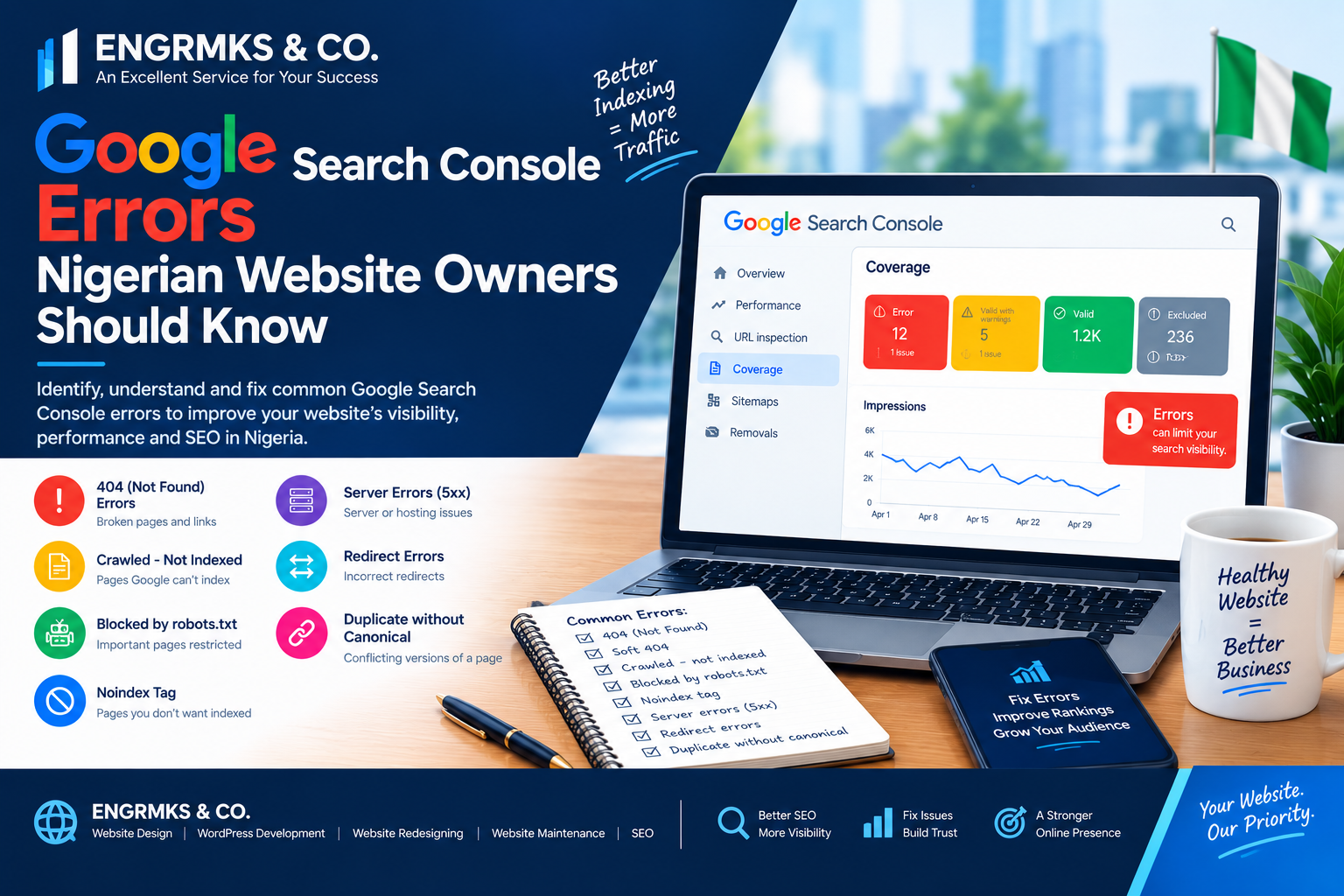
Google Search Console Errors Nigerian Website Owners Should Know
Introduction
For Nigerian website owners, bloggers, publishers, businesses and content creators, Google Search Console is one of the most useful free tools for understanding how Google sees a website.
However, opening Search Console and seeing messages such as “Not indexed,” “Server error (5xx),” “Blocked by robots.txt,” “Crawled – currently not indexed,” or “Duplicate, Google chose a different canonical” can be confusing.
The important thing to understand is that not every Search Console warning means something is broken.
Google explains that some URLs can legitimately remain outside its index. For example, duplicate URLs, pages with a noindex directive, removed pages returning 404, or URLs intentionally blocked from crawling may not need to be indexed. The goal is not to make every URL on a website appear as indexed; the goal is to make sure the important, canonical pages are accessible and eligible for Google Search.
For Nigerian website owners, especially those running WordPress websites, news platforms, blogs and business websites, understanding these errors can prevent unnecessary traffic losses and technical SEO problems.
Here are the major Google Search Console errors and warnings you should know.
1. “Page is not indexed”
One of the most common messages in Search Console is simply:
Page is not indexed.
This does not automatically mean that Google has detected a serious problem.
A page may not be indexed because Google has not discovered it yet, cannot crawl it, considers it a duplicate, encountered a technical problem, or determined that it should not be indexed.
The best place to investigate a specific URL is the URL Inspection tool, which can show whether Google can access the page and whether indexing is allowed.
What to do
Start by inspecting the affected URL.
Check:
- Whether the URL is accessible
- Whether crawling is allowed
- Whether indexing is allowed
- Whether a canonical URL has been selected
- Whether the page returns a normal HTTP response
- Whether Google has already crawled the page
- Whether the page is included in your XML sitemap
Do not repeatedly request indexing without first understanding the underlying issue.
2. “Crawled – currently not indexed”
This message is particularly important for bloggers and news publishers.
Crawled – currently not indexed means Google has crawled the URL but it is not currently included in Google’s index.
This is different from a page that Google has never crawled.
If you have hundreds of articles showing this status, it is worth investigating your content quality, duplication, internal linking and overall site structure rather than simply submitting every URL for indexing.
Possible causes
Your website may have:
- Thin or incomplete content
- Many similar articles
- Duplicate or near-duplicate pages
- Weak internal linking
- Large numbers of low-value URLs
- Poorly organized categories or tags
- Content that provides little additional value compared with existing pages
For news publishers, this can become a problem when many articles cover the same story with little original reporting or additional information.
What to do
Review the affected articles and ask:
Does this page provide something useful that another page on my website does not?
Improve the article where necessary by adding original reporting, useful context, authoritative sources, relevant images, data, quotations, explanations and meaningful internal links.
Do not assume that repeatedly clicking Request Indexing will solve the underlying problem.
3. “Discovered – currently not indexed”
This status means Google knows about a URL but has not crawled it yet.
Google’s documentation notes that indexing is not immediate, even after a URL has been discovered or submitted. Google may take time to crawl and process pages.
This can be especially noticeable on:
- New websites
- Websites publishing hundreds of pages
- News websites with large numbers of URLs
- Websites with weak internal linking
- Sites generating many low-value URL variations
How to improve discoverability
Make sure important pages are linked from other pages on your website.
For example, a Nigerian news website publishing an article about a major event could link that article from:
- The homepage
- A relevant category
- Related articles
- Topic pages
- Author pages where appropriate
Also maintain a properly configured XML sitemap.
Remember that a sitemap helps Google discover URLs, but it does not guarantee that every URL will be indexed.
4. “Blocked by robots.txt”
The robots.txt file tells search-engine crawlers which areas of a website they should or should not crawl.
A common problem occurs when a website owner or developer accidentally blocks important pages.
For example, a WordPress configuration or plugin could unintentionally prevent Google from crawling an important section of a website.
Google says that if a page is blocked by robots.txt, Google generally cannot crawl it. Search Console’s URL Inspection tool can help confirm whether a particular URL is blocked.
What to check
Review your:
domain.com/robots.txt
Look for rules that could be blocking:
- Important categories
- Posts
- Pages
- Images
- CSS or JavaScript resources
- Entire sections of the website
Important warning
Do not blindly remove every Disallow rule.
Some areas should not necessarily be crawled. The objective is to make sure important SEO pages are not accidentally blocked.
5. “Excluded by ‘noindex’ tag”
A noindex directive tells search engines not to include a page in their search index.
This can be intentional or accidental.
For example, you may intentionally use noindex for certain utility pages, but accidentally apply it to your blog posts.
Google’s URL Inspection documentation states that when “Indexing allowed?” is No, a noindex tag or HTTP header is preventing Google from indexing the page.
WordPress websites
If you use WordPress, check:
- SEO plugin settings
- Individual post settings
- Page settings
- Category settings
- Tag settings
- Theme configuration
- Robots meta settings
If an important article has accidentally been marked noindex, correct the setting and allow Google to recrawl the page.
6. “Not found (404)”
A 404 error means that a requested URL does not exist.
For example:
https://example.com/old-news-story/
may have been deleted or its URL may have changed.
Not every 404 is a problem.
Google specifically notes that it is normal for some removed URLs to return 404. The important question is whether your website is unnecessarily linking to those URLs or listing them in your sitemap.
When should you fix a 404?
Consider fixing it when:
- Your website links to the broken URL
- The URL is included in your sitemap
- The page has valuable backlinks
- The page has been permanently moved
- Users are likely to visit the old URL
If an article has permanently moved to a new URL, a suitable redirect can help send users and search engines to the replacement page.
7. “Server error (5xx)”
A 5xx error usually indicates a problem with the server or the infrastructure serving your website.
For Nigerian website owners, this can sometimes be associated with:
- Hosting overload
- Database problems
- PHP errors
- Plugin conflicts
- Server configuration problems
- Temporary downtime
- DNS or connectivity issues
- CDN or proxy problems
Google’s Crawl Stats documentation specifically identifies 5xx errors as availability problems that should be investigated.
Google also notes that URL access problems can include server errors, DNS problems, timeouts and unreachable robots.txt files.
What to do
If you see a sudden increase in 5xx errors:
- Check whether the website is accessible.
- Check your hosting control panel.
- Review server error logs.
- Check PHP and database errors.
- Disable recently installed or updated plugins if appropriate.
- Check your CDN or firewall configuration.
- Contact your hosting provider if the server is unstable.
- Re-test affected URLs in Search Console.
A website that regularly becomes unavailable can create both user-experience and crawling problems.
8. “Redirect error”
Redirects are useful when changing URLs, moving websites or consolidating old content.
However, incorrect redirects can create problems.
Common examples include:
- Redirect loops
- Too many redirects
- Incorrect destination URLs
- Redirect chains
- Redirecting to irrelevant pages
- HTTP/HTTPS configuration conflicts
Google’s Crawl Stats documentation identifies redirect errors as problems such as too many redirects, empty redirects or circular redirects.
Example
Instead of:
Old URL → Redirect A → Redirect B → Final Page
try to make the old URL point directly to the final destination where appropriate.
This is particularly important when migrating Nigerian websites from one domain to another or restructuring a WordPress website.
9. “Duplicate, Google chose different canonical”
Canonicalization tells Google which version of a page should generally be treated as the main version when multiple URLs contain similar or duplicate content.
This can happen on websites with:
- URL parameters
- Category variations
- Tag pages
- Pagination
- Print versions
- Multiple URL formats
- HTTP and HTTPS versions
- WWW and non-WWW variations
Seeing a duplicate status is not automatically an SEO disaster. Google does not need to index every duplicate URL. Its Page Indexing documentation explains that duplicate or alternate URLs may appropriately remain outside the index while the canonical version is indexed.
What to do
Check whether Google selected the correct canonical URL.
If your preferred canonical is not being selected, investigate:
rel="canonical"- Internal links
- XML sitemap URLs
- Redirects
- Duplicate content
- URL structure
Avoid creating multiple versions of the same article simply to target additional keywords.
10. “Sitemap could not be read”
An XML sitemap helps search engines discover important URLs on your website.
However, Search Console may report problems when the sitemap:
- Cannot be accessed
- Contains invalid XML
- Contains incorrect URLs
- Includes redirected URLs
- Includes URLs blocked by robots.txt
- Includes URLs marked
noindex - Uses an incorrect sitemap address
Google recommends ensuring that the sitemap is valid, accessible and not blocked by robots.txt.
For WordPress publishers
If you use an SEO plugin to generate your sitemap, check the sitemap URL after major website changes.
Also make sure that the URLs listed in your sitemap represent the canonical pages you actually want Google to discover and index.
11. Mobile and page experience problems
Your website can technically be indexed while still having problems that affect the user experience.
Search Console provides reports that can help website owners monitor areas such as Core Web Vitals and other search-related issues.
For Nigerian websites, mobile performance deserves particular attention because many visitors access news, business and blog websites from smartphones.
Check:
- Mobile layout
- Loading performance
- Core Web Vitals
- Intrusive pop-ups
- Excessive advertising
- HTTPS
- Navigation
- Readability
- Page stability
Do not focus only on achieving a perfect technical score. A fast, usable website should also provide genuinely useful content and a good experience for visitors.
12. Security issues
A hacked website can create much more serious problems than an ordinary indexing warning.
Google Search Console includes a Security Issues report that can alert website owners to detected problems such as hacking, phishing or harmful software. Google notes that security issues can result in warnings being shown to users or other restrictions in search.
This is especially important for WordPress websites.
Keep your:
- WordPress core
- Themes
- Plugins
- PHP environment
properly maintained.
Also use strong administrator passwords, appropriate user permissions and reliable backups.

If Search Console reports a security issue, investigate it promptly rather than treating it as an ordinary SEO warning.
13. Manual actions
A manual action is different from an ordinary technical error.
Google explains that manual actions are issued when a human reviewer determines that pages on a site do not comply with Google’s spam policies. Depending on the issue, some or all of the site may be affected in Google Search.
Examples can involve certain forms of:
- Search manipulation
- Spam
- Unnatural links
- Misleading structured data
- Hacked content
- Other violations of Google’s spam policies
If Search Console reports a manual action, read the specific notification carefully.
After fixing the issue across affected pages, Google provides a Request Review process.
How Nigerian Website Owners Should Monitor Search Console
You do not need to spend hours inside Search Console every day.
A practical monitoring routine can be enough.
Weekly checks
For active news websites and blogs, review:
- Search performance
- Clicks
- Impressions
- Major indexing changes
- New errors
- Important URL indexing
- Sitemap status
Monthly checks
Review:
- Page Indexing
- Core Web Vitals
- Security Issues
- Manual Actions
- Rich result reports where applicable
- Crawl statistics
- Major traffic changes
Google’s Search Console overview brings together important information such as clicks, indexing issues, manual actions, security issues and enhancement reports.
A Simple Search Console Troubleshooting Checklist
When an important page is not appearing in Google, follow this order:
Step 1: Inspect the URL
Use the URL Inspection tool.
Step 2: Check crawling
Is Google allowed to crawl the page?
Step 3: Check indexing
Is a noindex directive preventing indexing?
Step 4: Check the HTTP response
Does the page return a normal response instead of a 4xx or 5xx error?
Step 5: Check the canonical
Is Google selecting the correct canonical URL?
Step 6: Check content
Is the page original, useful and sufficiently valuable to users?
Step 7: Check internal links
Can Google easily discover the page through your website’s navigation and internal links?
Step 8: Check the sitemap
Is the correct canonical URL included in your XML sitemap?
Step 9: Fix the underlying problem
Do not simply request indexing repeatedly.
Step 10: Monitor the result
After making the correction, allow Google time to recrawl and process the page.
Google emphasizes that indexing is not instantaneous and that the URL Inspection tool is the appropriate place to investigate the status of a specific URL.
Final Thoughts
Google Search Console errors should not automatically cause panic.
A 404 may be perfectly normal. A duplicate URL may be intentionally excluded. A noindex directive may have been deliberately configured. But a sudden increase in 5xx errors, blocked pages, accidental noindex directives, sitemap problems or security issues deserves immediate attention.
For Nigerian content creators, bloggers, news publishers and business owners, the most important approach is to understand why Search Console is reporting an issue before attempting to fix it.
The objective is not to make every URL on your website appear as “Indexed.” Instead, focus on ensuring that your important, original, useful and canonical pages can be discovered, crawled and indexed correctly.
Regular Search Console monitoring, good technical SEO, reliable hosting, a clean website structure and valuable content can help you identify problems before they become major traffic or visibility issues.
If you manage a Nigerian website, make Google Search Console part of your regular website maintenance routine—not something you only open after your Google traffic has already dropped.