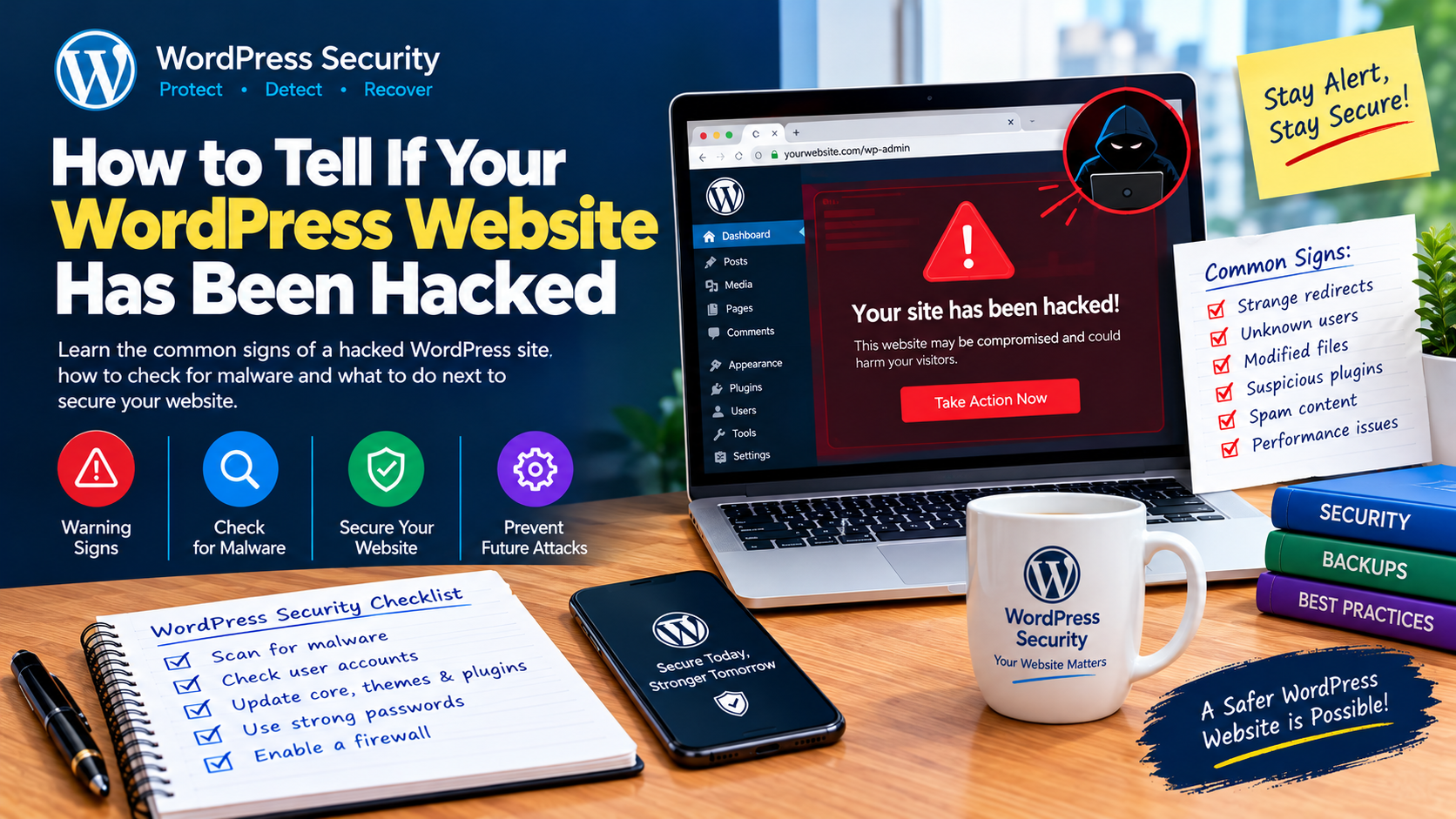
How to Tell If Your WordPress Website Has Been Hacked
A hacked WordPress website can damage your reputation, expose visitors to security risks, disrupt business operations, and affect your visibility on Google. Unfortunately, not every attack produces an obvious warning. Some compromised websites look normal to administrators while displaying spam, suspicious redirects, or unwanted content to visitors.
Knowing how to tell if your WordPress website has been hacked helps you identify suspicious activity early and take steps to protect your website.
In this guide, you will learn the common signs of a hacked WordPress website, how to check for malware and unauthorized changes, and what to do if you suspect your site has been compromised.
1. Your Website Redirects Visitors to Unknown Websites
One of the most noticeable signs of a hacked WordPress website is an unexpected redirect.
For example, a visitor clicks your homepage but is redirected to an unrelated website, a suspicious advertisement, or a page you never created.
Some malicious redirects occur only under certain conditions. They may affect mobile visitors, users arriving from search engines, or people visiting a particular page. This can make the problem difficult to notice during a routine desktop check.
What to check:
- Open important pages on different devices and browsers.
- Check whether unexpected redirects occur on specific pages.
- Review recently installed plugins, themes, and third-party scripts.
- Ask your hosting provider to examine server logs if the problem continues.
A redirect does not automatically prove that your website has been hacked. Misconfigured plugins, advertising scripts, and other technical issues can also cause unexpected behaviour. Investigate the source before making major changes.
2. Unknown Administrator Accounts Appear in WordPress
WordPress allows administrators to manage users, settings, themes, and plugins. If an attacker gains access to an account with sufficient permissions, they may create another account to maintain access.
Check your dashboard under Users → All Users.
Look for accounts you do not recognize, especially users with Administrator privileges. Confirm unfamiliar accounts with your website team before removing them.
Other warning signs include:
- Your own account has a different role.
- Your email address has been changed without permission.
- An unknown user has published posts or edited settings.
- You receive unexpected password-reset or account-change notifications.
If you confirm an unauthorized administrator, treat the incident seriously. Secure your accounts and contact your hosting provider or a qualified WordPress security professional to investigate how access was obtained.
3. Spam Pages or Unfamiliar Posts Appear
Attackers sometimes add spam pages, posts, links, or hidden content to compromised websites. They may use these pages to promote unrelated products or manipulate search results.
For example, a news website might suddenly contain unfamiliar pages about unrelated commercial services. A business website could develop spam links in its footer or blog posts.
To investigate:
- Open Posts → All Posts and Pages → All Pages.
- Sort or review content by publication date.
- Look for unfamiliar titles, authors, links, and recent edits.
- Check the Media Library for files you do not recognize.
- Review your sitemap and Google-indexed pages for suspicious URLs.
Be careful when deleting content. First confirm whether it is genuinely unauthorized, and preserve a backup or evidence for investigation where possible.
4. Google Displays a Security Warning for Your Website
Google may warn users when it detects hacked content, malware, phishing, or other security problems associated with a website.
Visitors might see a warning before opening your site. Your website may also be affected in search results if Google identifies security issues.
To investigate, open Google Search Console and select your website property. Check the Security Issues report for any reported problems.
Google explains that this report can identify issues such as hacked content, malware, and unwanted software. See the official Google Search Console Security Issues report.
If Google reports a security issue, read the details carefully. The report can help you understand what was detected, but you will still need to investigate and resolve the underlying problem.
Do not assume that every ranking drop or indexing problem means your website has been hacked. Algorithm changes, technical errors, and content issues can also affect search visibility.
5. Your Website Becomes Unusually Slow
A sudden drop in website performance may indicate a security problem, particularly if it occurs alongside other warning signs.
Malicious scripts, unauthorized processes, spam activity, or unexpected server requests can consume resources and affect performance.

Check whether:
- Your hosting account reports unusual CPU or memory usage.
- The website becomes slow without a clear increase in legitimate traffic.
- Your hosting provider reports suspicious activity.
- Unexpected files or scripts have appeared.
- The server repeatedly sends unusual requests or emails.
However, a slow WordPress website is not proof of hacking. Poorly optimized images, excessive plugins, database problems, caching issues, and hosting limitations are also common causes.
Compare your site’s recent behaviour with hosting logs and security scan results before concluding that an attack has occurred.
6. Your WordPress Dashboard or Website Settings Change Unexpectedly
Another warning sign is an unexpected change to your website’s configuration.
Examples include:
- Your homepage has been replaced or modified.
- Unknown plugins have been installed or activated.
- Your theme files contain unfamiliar changes.
- Website users report that content has disappeared.
- Your site title, administrator email, or other settings have changed.
- New code or links appear in headers, footers, or widgets.
Review recent changes with your developers or other authorized administrators. If nobody can explain the changes, investigate them promptly.
Do not remove unfamiliar code blindly. Some legitimate plugins and themes add code automatically, so compare suspicious changes with a clean copy of the relevant software or ask a qualified professional to inspect them.
7. You Cannot Log In to Your WordPress Dashboard
Being unable to log in may mean your password has changed, your account has been disabled, or your website is experiencing a technical problem.
If your previously valid credentials no longer work, check whether you received a legitimate password-change notification. Contact another authorized administrator or your hosting provider to verify what happened.
Other possible causes include:
- A forgotten or mistyped password.
- A plugin conflict affecting the login page.
- A server or database problem.
- Security software temporarily blocking access.
- Unauthorized changes to your account.
Avoid repeatedly trying random passwords. If you suspect unauthorized access, use a trusted device, secure your email account, and follow your hosting provider’s account-recovery process.
8. Your Hosting Provider Reports Suspicious Activity
Your hosting provider may detect suspicious files, malware, unusual server requests, unauthorized scripts, or activity that violates its security policies.
You may receive a notification that your website has been restricted or that a security scan has identified a problem.
Do not ignore such messages. Contact the provider through its official support channel and ask for details, including:
- The affected files or directories.
- The time the suspicious activity was detected.
- Any malware scan findings.
- Relevant server or access logs.
- Whether other websites on the hosting account may be affected.
On shared hosting, it is particularly important to ask whether the issue is isolated to one website or involves other parts of the hosting environment.
9. Unknown Files or Suspicious Code Appear on Your Server
If you have access to cPanel, FTP, or a hosting file manager, you may notice files you did not create or unexpected changes to existing files.
Pay attention to unfamiliar files in WordPress directories, modified theme files, unexpected PHP scripts, and changes to configuration files.
Common areas to investigate include:
wp-content/plugins/wp-content/themes/wp-content/uploads/- The WordPress root directory
.htaccessandwp-config.php
These locations can contain legitimate files, so an unfamiliar filename alone does not establish that a file is malicious. Compare files against trusted originals, review modification dates, and use a reputable security scanner or professional assistance.
Do not delete core files or edit configuration files without a backup and a clear understanding of the change.
10. Your Website Sends Spam Emails or Receives Security Complaints
A compromised website may be abused to send unsolicited emails, host phishing pages, or deliver harmful downloads.
Possible signs include:
- Your hosting provider reports excessive outgoing email.
- Recipients report messages you did not send.
- Your domain or server IP develops email-delivery problems.
- Visitors report suspicious downloads or unexpected pop-ups.
- Security software identifies your website as unsafe.
First, confirm the reports with your hosting provider. If your website is being used to send unauthorized messages, ask the provider to investigate the source and restrict the suspicious activity safely.
How to Check If Your WordPress Website Has Been Hacked
If you notice one or more of these symptoms, follow this practical investigation process.
Step 1: Record the symptoms
Write down what changed, when you first noticed it, which pages are affected, and whether you recently installed or updated any plugins or themes.
Keep screenshots and relevant notifications. This information can help your hosting provider or security specialist identify the cause.
Step 2: Run a reputable security scan
Use a trusted WordPress security plugin or an established external website scanner. Review the findings for suspicious files, known malware, unexpected changes, and other potential indicators of compromise.
Examples of established tools include Wordfence and Sucuri SiteCheck. A scan can help identify problems, but no single scanner guarantees that every infection will be detected.

Step 3: Check WordPress users and recent changes
Review administrator accounts, recent posts, plugin installations, theme changes, and important settings. Confirm unfamiliar activity with authorized team members before removing accounts or files.
Step 4: Review Google Search Console
Open your site’s property in Google Search Console and inspect the Security Issues report. Also review search results and indexed pages for unexpected URLs.
If Google identifies a security issue, use its report to guide your investigation and follow the recommended remediation process.
Step 5: Contact your hosting provider
Ask the provider to review security scans, server logs, suspicious file changes, and unusual activity. Hosting support may be able to identify problems that are not visible in the WordPress dashboard.
For a compromised website, use the official WordPress guide to hacked websites as an additional reference.
What to Do If Your WordPress Website Has Been Hacked
If you have strong evidence of compromise, focus on limiting further damage and restoring the website safely.
- Contact your hosting provider. Explain the symptoms and ask for help containing the incident.
- Preserve evidence and backups. Keep a copy of relevant logs and a backup for investigation. Do not overwrite every backup with a potentially infected version.
- Secure your accounts. From a trusted device, change affected passwords, including WordPress, hosting, email, and file-transfer accounts. Enable two-factor authentication where available.
- Remove the underlying cause. Have the compromised files, vulnerable plugins, themes, and unauthorized accounts investigated and cleaned.
- Restore clean files or backups where appropriate. Confirm that the restored version is safe and that the original vulnerability has been addressed.
- Update WordPress and its components. Install supported security updates for WordPress core, plugins, and themes. Remove unused components.
- Check the website again. Run security scans, test important pages, review user accounts, and verify that suspicious redirects or content have disappeared.
- Request a Google review if necessary. After fixing the reported security problems, follow Google’s instructions for requesting a review through Search Console.
If the website processes customer information or supports an important business operation, professional incident-response assistance may be the safest option.
How to Prevent Your WordPress Website from Being Hacked
Prevention reduces risk and makes recovery easier.
- Keep WordPress core, themes, and plugins updated.
- Use strong, unique passwords and two-factor authentication.
- Give each user only the permissions required for their role.
- Install plugins and themes from trusted sources.
- Remove unused or abandoned components.
- Maintain regular, tested backups stored separately from the website.
- Use reputable security monitoring and malware scanning.
- Keep hosting, database, and file-transfer access secure.
- Monitor website files, administrator accounts, and hosting activity.
- Use HTTPS and a hosting provider with appropriate security controls.
Security is an ongoing process. A website can become vulnerable even when it previously operated without problems, so regular maintenance is essential.
Frequently Asked Questions
Can a hacked WordPress website still look normal?
Yes. Some compromised websites continue to look normal to administrators while displaying spam or redirects to certain visitors. This is why security scans, user reviews, and hosting logs are important.
Does a slow WordPress website mean it has been hacked?
No. Slow performance can result from hosting limitations, large images, plugin conflicts, database problems, or high traffic. Investigate other warning signs before concluding that a security breach has occurred.
Can Google tell me if my WordPress website has been hacked?
Google Search Console can report detected security issues, including certain types of hacked content and malware. However, a report with no detected issues does not guarantee that your website is completely clean.
Should I delete WordPress and reinstall it immediately?
Not necessarily. Reinstalling WordPress alone may leave malicious files, compromised plugins, database changes, or unauthorized accounts behind. First investigate the incident, preserve evidence, and follow a complete cleanup and recovery process.
Will fixing a hacked website restore its Google rankings?
Cleaning the website can help address security-related problems, but ranking recovery is not guaranteed or necessarily immediate. You may need to resolve reported issues, request a review where applicable, and allow search engines to recrawl affected pages.
Conclusion
Knowing how to tell if your WordPress website has been hacked helps you respond before a security problem causes further disruption. Unexpected redirects, unknown administrator accounts, spam pages, Google security warnings, suspicious files, and unexplained configuration changes are all reasons to investigate.
One symptom alone may have a harmless explanation, but several unusual changes occurring together deserve urgent attention. Check your website carefully, consult your hosting provider, use reputable security tools, and ensure that any compromise is fully cleaned before returning to normal operations.
Regular updates, strong authentication, secure hosting, and reliable backups will help protect your website and make future incidents easier to manage.