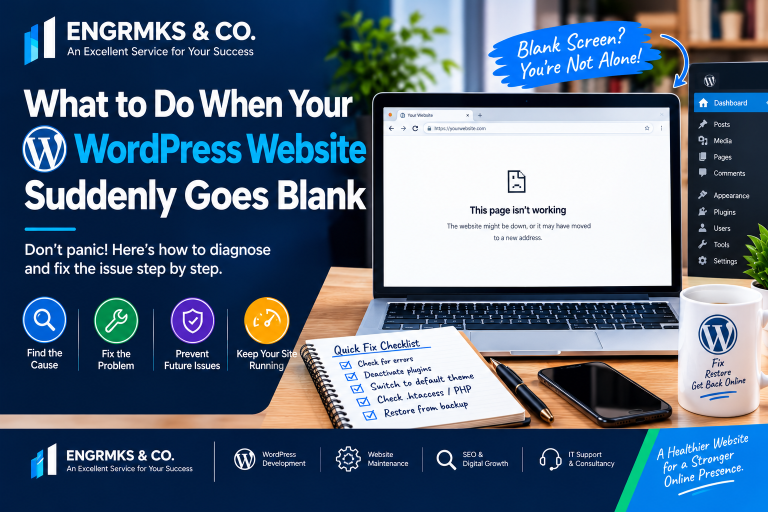
How to Fix WordPress Error Establishing Database Connection
If your WordPress website suddenly displays “Error Establishing a Database Connection,” don’t panic. This is one of the most common problems that can make an entire WordPress website unavailable, including the homepage, blog posts, pages and sometimes the WordPress administration dashboard.
For bloggers, content creators and news publishers, this error can be particularly serious because every minute your website remains offline can mean lost visitors, advertising impressions, search traffic and potential revenue.
The good news is that the problem is often fixable.
In this guide, we’ll explain what causes the WordPress Error Establishing Database Connection and how to fix it step by step, starting with the simplest solutions before moving to more advanced troubleshooting.
According to WordPress’s official documentation, common causes include incorrect database information in wp-config.php and problems with the hosting/database server. (WordPress Developer Resources)
What Does “Error Establishing a Database Connection” Mean?
WordPress uses a database to store almost all of the important information that powers your website.
This includes:
- Blog posts
- Pages
- User accounts
- Comments
- Website settings
- Categories
- Tags
- Plugin settings
- Theme settings
- Menus
- Metadata
When someone visits your website, WordPress needs to communicate with the database to retrieve this information.
If WordPress cannot connect to the database, it cannot properly build the requested page. As a result, visitors may see:
Error Establishing a Database Connection
The problem doesn’t necessarily mean that your entire database has been deleted. It simply means WordPress is currently unable to establish a working connection to it.
Common Causes of the WordPress Database Connection Error
There are several possible causes.
1. Incorrect Database Credentials
Your WordPress installation uses information in the wp-config.php file to connect to the database.
The important values include:
- Database name
- Database username
- Database password
- Database host
If any of these values are incorrect, WordPress may be unable to connect. (WordPress Developer Resources)
This can happen after:
- Changing your database password
- Migrating your website
- Moving to another hosting provider
- Manually editing
wp-config.php - Restoring a backup
- Creating a new database user
2. Your Database Server Is Down
Sometimes the problem isn’t your WordPress installation at all.
Your hosting provider’s MySQL/MariaDB database server may be experiencing:
- An outage
- Server maintenance
- High resource usage
- Database service failure
- Temporary connectivity problems
WordPress specifically recommends checking with your hosting provider when the database server may be unavailable. (WordPress Developer Resources)
How to Fix WordPress Error Establishing Database Connection
Step 1: Check if the Error Is Temporary
Before changing files or databases, refresh your website.
Try:
- Open your website in another browser.
- Test it using your phone.
- Try both the homepage and
/wp-admin/. - Ask someone else to visit the website.
If the website suddenly starts working again, the problem may have been a temporary database-server or hosting issue.
If the error continues, proceed to the next step.
Step 2: Check Your WordPress Hosting
Log in to your hosting control panel, such as cPanel, and check whether there are any alerts concerning your account.
Look for:
- Database service problems
- Account suspension
- Disk-space warnings
- Resource-limit warnings
- Server outages
- Recent hosting maintenance
For a news website receiving a large amount of traffic, database resource limits can become particularly important.
If you’re unsure whether the database server is working, contact your hosting provider and ask them to verify the status of the MySQL/MariaDB service.
Step 3: Check Your wp-config.php File
This is one of the most important troubleshooting steps.
The wp-config.php file is normally located in the root directory of your WordPress installation.
You can access it through:
- cPanel File Manager
- FTP
- SFTP
- Your hosting file manager
Before editing it, make a backup of the file.
Look for database configuration similar to:
define( 'DB_NAME', 'database_name' );
define( 'DB_USER', 'database_username' );
define( 'DB_PASSWORD', 'database_password' );
define( 'DB_HOST', 'localhost' );
Check that:
DB_NAMEmatches your actual database name.DB_USERis correct.DB_PASSWORDis correct.DB_HOSTis correct.
WordPress documentation specifically identifies these database connection values as important when troubleshooting this error. (WordPress Developer Resources)
Important: Don’t copy the example values above into your website. Your actual hosting provider determines the correct database credentials.
Step 4: Verify the Database and User in cPanel
If you use cPanel, open:
cPanel → MySQL Databases
Check whether the database listed in wp-config.php actually exists.
Then check the database user.
Make sure the user is assigned to the correct database and has the necessary privileges.
This is especially important after migrating a WordPress website.
For example, your hosting account may use names such as:
username_wordpress
username_wpuser
rather than simply:
wordpress
wpuser
The exact naming depends on your hosting environment.
Step 5: Test the Database Password
If you recently changed your database user’s password, WordPress may still be using the old password.
You can reset the database user’s password from your hosting control panel and then update the corresponding:
DB_PASSWORDvalue in wp-config.php.
Be extremely careful when editing the file because a syntax error can create a different WordPress error.
Step 6: Check Whether the Database Needs Repair
A damaged or corrupted database can also cause problems.
WordPress provides a built-in database repair mechanism that can be enabled through wp-config.php.
Add:
define( 'WP_ALLOW_REPAIR', true );Then visit:
https://yourdomain.com/wp-admin/maint/repair.phpReplace yourdomain.com with your actual domain.
WordPress documents this repair feature and notes that it is intended to be enabled only when necessary and disabled after the problem has been addressed. (WordPress Developer Resources)
You may see options to:
- Repair the database
- Repair and optimize the database
Important Security Warning
After completing the repair, remove:
define( 'WP_ALLOW_REPAIR', true );from wp-config.php.
WordPress notes that the repair functionality does not require a user to be logged in, which is why it should not be left enabled unnecessarily. (WordPress Developer Resources)
Step 7: Check Your Database Using phpMyAdmin
If the WordPress repair tool doesn’t solve the problem, you can inspect the database through phpMyAdmin, which is commonly available in hosting control panels.
Open phpMyAdmin and select your WordPress database.
You should see tables such as:
wp_postswp_optionswp_userswp_usermetawp_comments
Your table prefix may not be wp_; many websites use a customized prefix.
If tables are showing errors, your hosting provider may be able to repair them.
Always create a database backup before performing database repairs or making structural changes.
Step 8: Check Your Hosting Storage and Resource Limits
A WordPress database connection problem can sometimes be related to hosting limitations.
Check your hosting account for:
- Disk-space usage
- Database limits
- CPU usage
- RAM usage
- Entry processes
- MySQL connection limits
This is particularly important for busy news websites and blogs.
A website publishing dozens or hundreds of articles every month may generate considerably more database activity than a small business website.
If your website frequently goes down during traffic spikes, ask your hosting provider to investigate database resource usage rather than repeatedly repairing the database.
Step 9: Consider Recent Website Changes
Think about what happened immediately before the error appeared.
Did you recently:
- Install a plugin?
- Update WordPress?
- Update a theme?
- Change hosting?
- Change the database password?
- Restore a backup?
- Migrate the website?
- Modify
wp-config.php? - Change server settings?
This can help narrow down the cause.
For example, if the problem started immediately after a hosting migration, check the database credentials and database host first.

If it started after a server outage, contact the hosting provider.
Step 10: Contact Your Hosting Provider
If you’ve confirmed that the database credentials are correct but WordPress still cannot connect, contact your hosting provider.
Ask them to check:
- Whether the database server is running.
- Whether your database exists.
- Whether your database user has the correct permissions.
- Whether the database has reached a resource limit.
- Whether there are database-server errors in the logs.
- Whether the hosting account has been suspended or restricted.
WordPress’s own documentation recommends contacting the hosting provider when server-side database problems may be responsible. (WordPress Developer Resources)
How to Prevent WordPress Database Connection Errors
Fixing the problem is important, but preventing it from happening again is even better.
Keep Regular Backups
Maintain both:
- Website file backups
- Database backups
A database backup is particularly important because your posts, pages, users and settings depend on it.
Avoid Unnecessary Plugin Overload
Install only plugins you actually need and keep them updated.
Remove plugins that are abandoned, unused or unnecessary.
Monitor Your Hosting Resources
If your website is growing rapidly, shared hosting may eventually become insufficient.
News publishers should pay particular attention to database performance and server resources.
Keep WordPress Updated
Regularly update:
- WordPress core
- Themes
- Plugins
- PHP where supported and appropriate
Always maintain a backup before major updates.
Use Reliable Hosting
For websites that generate significant traffic, choose hosting with adequate database resources and reliable technical support.
Frequently Asked Questions
Why is my WordPress website showing “Error Establishing a Database Connection”?
The error means WordPress cannot establish a connection with its database. Common causes include incorrect database credentials, database-server problems, hosting issues or database corruption. (WordPress Developer Resources)
Can I fix the error without accessing WordPress admin?
Yes. In fact, you often cannot access the WordPress dashboard while this error is occurring. You can use your hosting File Manager, FTP/SFTP, cPanel, phpMyAdmin or your hosting provider’s support service.
Will repairing the database delete my posts?
A database repair should be approached carefully. Always make a backup before attempting repairs. If the database is seriously damaged, restoring a known-good backup may be safer than performing aggressive repairs.
What is DB_HOST in WordPress?
DB_HOST tells WordPress where the database server is located. Its correct value depends on your hosting environment. localhost is common, but it is not universal, so use the value supplied by your hosting provider.
Why does my website work sometimes and then show the database error?
Intermittent errors can indicate temporary database-server problems, resource limits, connection limits or hosting instability. If the problem repeatedly comes and goes, ask your hosting provider to examine server and database logs rather than simply repairing the database each time.
Final Thoughts
The WordPress Error Establishing Database Connection can look frightening, especially when it takes an entire blog or news website offline. However, the problem is often caused by something identifiable and fixable.
Start with the simplest checks: verify your hosting status, check wp-config.php, confirm the database credentials, and make sure the database server is available.
If those checks don’t solve the problem, move on to database repair, phpMyAdmin inspection and hosting-resource investigation.
For content creators and news publishers, regular backups and reliable hosting are especially important. A few preventive measures can save hours of troubleshooting—and potentially protect valuable articles, traffic and revenue.