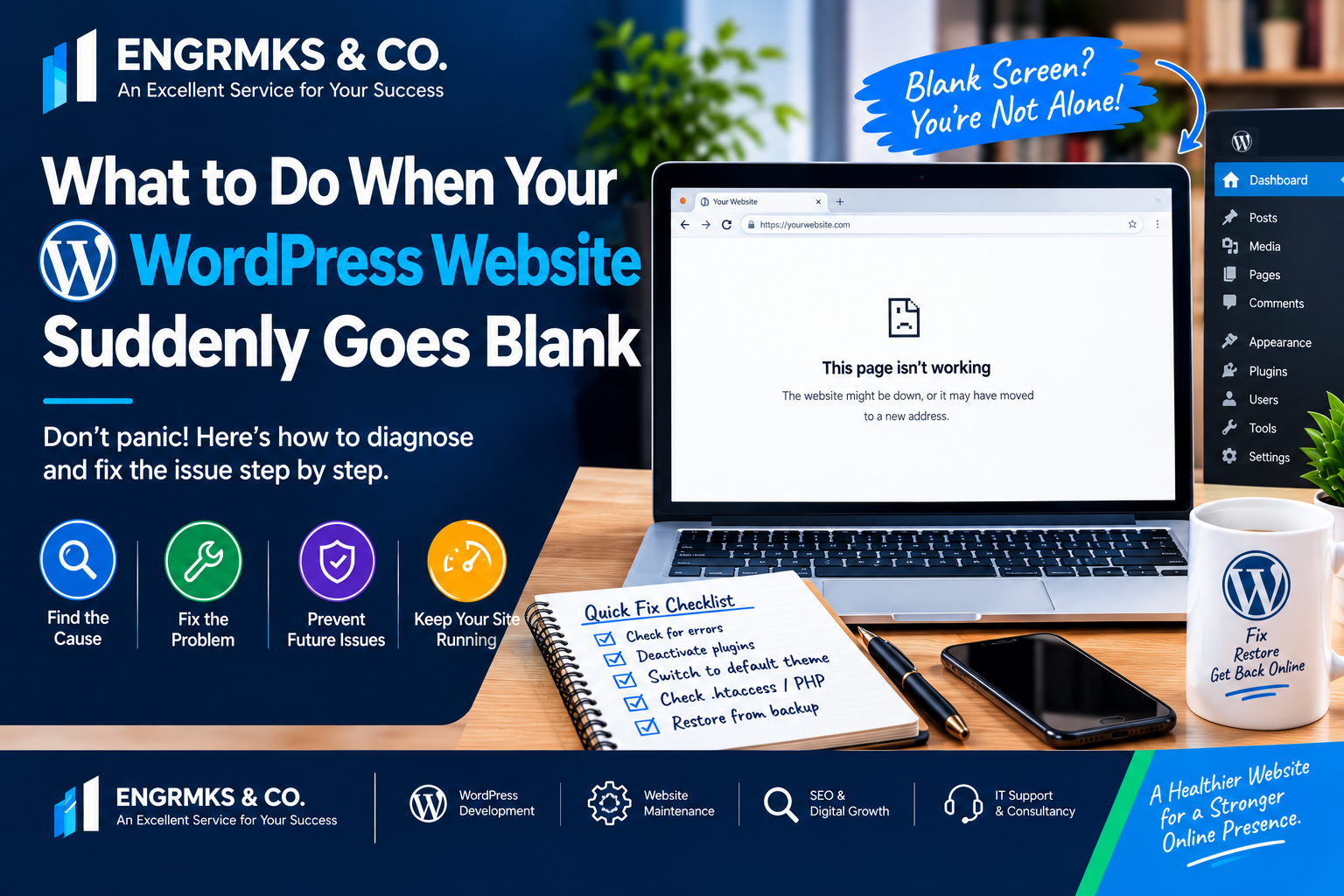
What to Do When Your WordPress Website Suddenly Goes Blank
Introduction
Few things are more worrying for a website owner than opening your website and seeing nothing but a blank screen.
One moment your WordPress website is working normally, and the next moment the homepage, dashboard or individual pages appear completely empty. Sometimes there is no error message at all. Other times, you may see a message such as “There has been a critical error on this website.”
This problem is commonly associated with what WordPress users have historically called the White Screen of Death (WSOD).
A blank WordPress website does not necessarily mean that your content has been deleted. In many cases, the underlying database and website files are still intact, but WordPress is encountering a PHP error, plugin conflict, theme problem, memory limitation or another technical failure that prevents the page from rendering correctly.
WordPress introduced Recovery Mode to help administrators deal with certain fatal errors. When WordPress detects a fatal PHP error during a normal page request, Recovery Mode can pause the problematic plugin or theme for the administrator’s session and provide information about the problem.
So, if your WordPress website suddenly goes blank, don’t immediately reinstall WordPress or delete your files.
Start with a structured diagnosis.
1. First, Check Whether the Entire Website Is Down
Before changing anything, determine exactly what is happening.
Try opening:
- Your homepage
- A blog post
- A page
/wp-admin//wp-login.php
Also try opening the website from another browser or device.
This helps determine whether:
A. Only the homepage is blank
or
B. The entire website is blank
or
C. The frontend is blank but WordPress Dashboard works
or
D. Both the frontend and Dashboard are inaccessible
These situations can have different causes.
For example, if the Dashboard works but the homepage is blank, a theme, page-builder component, shortcode or frontend plugin may be responsible.
If both the frontend and Dashboard fail, the problem may be more serious and could involve a plugin, PHP error, server configuration, database problem or corrupted WordPress files.
2. Check Your WordPress Admin Email
If your website displays a critical error, check the administrator email address associated with WordPress.
WordPress Recovery Mode can send an administrator an email containing information about the error and a link that can be used to enter Recovery Mode.
The email may identify:
- The problematic plugin
- The active theme
- A PHP error
- The affected file
- A specific line number
If you receive a Recovery Mode email, follow the provided instructions before making major changes to your installation.
Once inside Recovery Mode, WordPress can pause a faulty plugin or theme for your administrator session, allowing you to access the Dashboard and troubleshoot the problem.
3. Think About What Changed Immediately Before the Problem
This is one of the fastest ways to identify the cause.
Ask yourself:
What changed just before the website went blank?
For example:
- Did you install a new plugin?
- Did you update a plugin?
- Did you update the theme?
- Did you update WordPress?
- Did you change PHP versions?
- Did you add custom PHP code?
- Did you edit
functions.php? - Did you modify
.htaccess? - Did you install a new page builder?
- Did you change hosting?
- Did you migrate the website?
- Did you change caching settings?
If the website went blank immediately after one of these actions, that change should be investigated first.
WordPress documentation identifies plugin conflicts, theme compatibility problems, incompatible PHP versions, memory limits and corrupted files among possible causes of critical errors.
4. Disable Your Plugins
A plugin conflict is one of the common things to investigate when a WordPress website suddenly stops working.
If you can access the Dashboard, go to:
Plugins → Installed Plugins
Deactivate plugins, particularly the plugin that was recently installed or updated.
If you don’t know which plugin is responsible, you can temporarily deactivate plugins one at a time and test the website after each change.
WordPress recommends this approach when troubleshooting plugin-related problems.
What if You Cannot Access wp-admin?
If the entire website and Dashboard are inaccessible, you can use your hosting File Manager, FTP or another file-management method.
Navigate to:
wp-content/plugins
You can temporarily rename the plugins directory, for example:
plugins → plugins-disabled
This can cause WordPress to deactivate the plugins, allowing you to determine whether a plugin is responsible.
WordPress documents this approach as one way to deactivate plugins when the administration screens are inaccessible.
Once the website loads again, restore the directory name and identify the problematic plugin rather than leaving every plugin disabled.
5. Check Your WordPress Theme
If disabling plugins doesn’t solve the problem, your active theme could be responsible.
This is particularly likely if you recently:
- Updated the theme
- Modified
functions.php - Added custom code
- Installed a child theme
- Changed theme settings
- Added a custom template
- Updated PHP
If you can access WordPress Dashboard, temporarily activate a default WordPress theme.
If the website begins working, the original theme is likely involved.
WordPress documentation also warns that a broken or corrupted theme can cause display problems and recommends investigating a theme before activating it when its preview is blank.
6. Check for a PHP Error
Modern WordPress websites rely heavily on PHP.
A PHP error can prevent WordPress from completing the process of generating a webpage.

This can happen because of:
- Incompatible plugins
- Outdated plugins
- Theme errors
- Custom PHP code
- Incompatible PHP versions
- Undefined functions
- Syntax errors
- Memory limitations
If your website suddenly goes blank after editing PHP code, check the code you changed first.
A single missing bracket, quotation mark or semicolon can sometimes prevent PHP from executing correctly.
7. Enable WordPress Debug Logging
If you cannot identify the problem, WordPress provides debugging tools that can help reveal the underlying error.
For troubleshooting, you can enable debugging in wp-config.php.
A commonly used configuration is:
define( 'WP_DEBUG', true );
define( 'WP_DEBUG_LOG', true );
define( 'WP_DEBUG_DISPLAY', false );
This configuration allows WordPress to record errors in:
wp-content/debug.log
while preventing error messages from being displayed directly to visitors. WordPress’s developer documentation recommends using debugging primarily for development and staging environments and cautions against exposing debugging information publicly.
After reproducing the problem, inspect the debug log for errors that point to:
- A plugin
- A theme
- A PHP function
- A specific file
- A specific line number
Important: Don’t leave debugging settings improperly configured on a production website. Debug logs can contain sensitive information and should not be publicly accessible.
8. Check Your PHP Version
Your hosting account’s PHP version can affect WordPress, plugins and themes.
If your hosting provider recently changed the PHP version, an older plugin or theme may stop working correctly.
Check your hosting control panel, such as cPanel, for the current PHP version.
If the problem started immediately after a PHP upgrade, investigate plugin and theme compatibility.
However, don’t automatically downgrade PHP permanently just because it makes the website work again.
A better solution is to identify the outdated or incompatible component and update or replace it.
9. Check the WordPress Memory Limit
A website with many plugins, a complex theme, page builder or heavy processing requirements can encounter PHP memory limitations.
Symptoms may include:
- Blank pages
- Fatal PHP errors
- Dashboard failures
- Failed plugin operations
- Failed imports
- Problems uploading large files
The exact solution depends on your hosting environment and PHP configuration.
If you have access to cPanel, your hosting provider may allow you to adjust PHP resource limits.
Before increasing limits significantly, however, investigate why the website is consuming excessive resources.
Simply increasing the memory limit can sometimes hide the underlying problem rather than fixing it.
10. Check .htaccess and Server Configuration
If your website suddenly becomes inaccessible after changes to .htaccess, investigate that file.
A malformed .htaccess configuration can cause server errors or interfere with WordPress requests.
If you’re not comfortable editing .htaccess, make a backup of the existing file and ask your hosting provider or WordPress developer to inspect it.
WordPress documentation also recommends caution when modifying server configuration if you’re unfamiliar with it.
11. Clear WordPress and Server Caches
Sometimes a website may appear broken because an outdated cached version is being served.
Depending on your setup, you may have several layers of caching:
- Browser cache
- WordPress caching plugin
- Server-side cache
- CDN cache
- Hosting cache
WordPress documentation identifies browser caching, server-side caching and caching plugins as possible reasons why website changes may not appear correctly.
Clear the relevant caches and then test the website again.
If you use a CDN, purge its cache as well.
12. Check Your Database Connection
A completely blank or broken website can sometimes be associated with database problems.
Check whether you see an error such as:
“Error establishing a database connection.”
Possible causes include:
- Incorrect database credentials
- Database server problems
- Database corruption
- Hosting problems
- Database server overload
If the database server itself is unavailable, changing plugins or themes will not solve the problem.
Contact your hosting provider if you suspect a server-side database issue.
13. Check Your Hosting Account
Sometimes the problem has nothing to do with WordPress itself.
Your hosting account could be experiencing:
- CPU limitations
- RAM limitations
- Disk-space exhaustion
- Inode limits
- PHP worker limitations
- Server outages
- Database server problems
- Security restrictions
Log into your hosting control panel and check resource usage.
If your website has recently experienced a large traffic increase, published viral content or added resource-heavy plugins, hosting limitations are worth investigating.
This is especially important for news publishers, where sudden traffic spikes can place significant pressure on shared hosting environments.
14. Restore From a Recent Backup
If the website worked correctly before a recent change, restoring a known-good backup may be the fastest way to recover.
Before restoring, identify:
- When the website last worked
- What changed afterward
- Whether the backup includes the database
- Whether it includes WordPress files
- Whether media files are included
A proper WordPress backup should cover the information necessary to restore the website.
If possible, preserve the current website files and logs before performing a destructive restoration. They may contain useful evidence about what caused the failure.
15. Use WordPress Site Health After Recovery
Once your website is working again, don’t simply forget about the incident.
Visit:
Tools → Site Health
WordPress Site Health provides information about your website’s configuration and highlights critical issues and recommended improvements. It can also provide technical information about WordPress, plugins, themes, server configuration, database and permissions.
Use the information to identify problems that could cause future failures.
What If the Website Is Still Blank?
If you’ve tried the steps above and the website remains blank, avoid randomly deleting files or reinstalling WordPress.
Instead, investigate systematically.
Check these areas:
1. WordPress error logs
Look for PHP fatal errors and identify the affected file.
2. Server error logs
Your hosting provider may provide Apache, Nginx or PHP error logs.
3. Plugins

Deactivate all plugins and reactivate them individually.
4. Theme
Test with a default WordPress theme.
5. PHP
Check PHP version and compatibility.
6. Database
Confirm that the database server and credentials are working.
7. Hosting
Check disk space, memory, CPU and other resource limits.
8. Recent changes
Review everything modified immediately before the failure.
How to Prevent Your WordPress Website From Going Blank Again
Prevention is better than emergency recovery.
Follow these practices:
Keep WordPress Updated
Use supported WordPress releases and keep security updates current.
Keep Plugins Updated
Don’t allow outdated plugins to remain installed indefinitely.
Remove Unused Plugins
Every unnecessary plugin adds maintenance and compatibility considerations.
Use Reliable Themes
Avoid abandoned or poorly maintained themes.
Maintain Regular Backups
Keep backups in a location separate from your live hosting environment when practical.
Test Major Updates
For important websites, test significant plugin, theme or WordPress updates on a staging environment before applying them to production.
Monitor Error Logs
Regularly review server and WordPress logs when troubleshooting recurring problems.
Monitor Hosting Resources
If your website regularly approaches its resource limits, consider optimizing the site or moving to a more suitable hosting environment.
Use a Maintenance Routine
A professional WordPress maintenance routine should cover updates, backups, security, performance, database health and error monitoring.
Quick WordPress Blank-Screen Troubleshooting Checklist
When your WordPress website suddenly goes blank, work through this checklist:
- Check the website from another browser
- Check whether
/wp-admin/works - Check your WordPress administrator email
- Look for a Recovery Mode notification
- Identify recent changes
- Disable recently updated plugins
- Temporarily disable all plugins if necessary
- Test the active theme
- Check PHP errors
- Review
wp-content/debug.log - Check PHP version
- Check memory/resource limits
- Inspect
.htaccess - Clear website and server caches
- Check the database connection
- Check cPanel/server resources
- Restore a known-good backup if necessary
- Run WordPress Site Health after recovery
Final Thoughts
A WordPress website suddenly going blank can be alarming, but it does not automatically mean that your website or content has been lost.
In many cases, the problem can be traced to a recent plugin or theme change, PHP error, incompatible software, memory limitation, server configuration issue or hosting problem.
The most important thing is to diagnose before deleting or reinstalling anything.
Start by determining whether the problem affects the entire website or only specific pages. Check your administrator email and Recovery Mode, investigate recent changes, deactivate problematic plugins, test your theme, inspect PHP logs and check your hosting environment.
For developers and experienced WordPress administrators, debug logging can provide valuable information about the underlying failure. For less technical website owners, the hosting provider or a qualified WordPress developer can help interpret the error logs and restore the site safely.
Once the website is back online, use the incident as an opportunity to improve your maintenance process.
Regular backups, software updates, security monitoring, staging environments and hosting-resource monitoring can significantly reduce the disruption caused by future WordPress problems.
Frequently Asked Questions
Why did my WordPress website suddenly go blank?
Common possibilities include a plugin conflict, theme problem, PHP error, incompatible PHP version, memory limitation, corrupted files, database problems or server configuration issues. WordPress specifically identifies plugin/theme conflicts, incompatible PHP versions, memory limits and corrupted files as possible causes of critical errors.
What is the WordPress White Screen of Death?
The term “White Screen of Death” describes a situation where WordPress fails to render the expected page and the visitor sees a blank screen. Modern WordPress includes Recovery Mode to help with certain fatal errors.
Can a plugin make my WordPress website go blank?
Yes. A plugin can cause a fatal error or conflict with WordPress, another plugin, a theme or the server environment. Temporarily disabling plugins is one of the standard troubleshooting approaches.
Can I fix a blank WordPress website through cPanel?
Often, yes. Depending on the cause, cPanel can give you access to File Manager, PHP settings, error logs, database tools and other resources needed for troubleshooting. For example, plugins can be temporarily disabled by renaming their directory when the WordPress Dashboard is inaccessible.
Should I reinstall WordPress when my website goes blank?
Not as a first step. Reinstalling WordPress without identifying the cause can make troubleshooting more difficult and may not fix a plugin, theme, PHP, database or server problem.
Where can I find WordPress error logs?
When WordPress debugging is configured to log errors, the standard debug log is commonly located at wp-content/debug.log. WordPress’s developer documentation explains how WP_DEBUG, WP_DEBUG_LOG and WP_DEBUG_DISPLAY work.
How can I prevent WordPress from going blank in the future?
Keep WordPress, plugins and themes maintained; use reliable backups; test major changes; monitor PHP and server resources; remove unnecessary software; and maintain a regular WordPress security and maintenance routine.