Why Your WordPress Website Keeps Going Down: Common Causes and How to Fix It
Few things are more frustrating for a website owner than discovering that a WordPress website is down—especially when it happens repeatedly.
You may see a blank screen, a “There has been a critical error on this website” message, “Error Establishing a Database Connection,” a 500 Internal Server Error, a timeout, or a website that simply refuses to load.
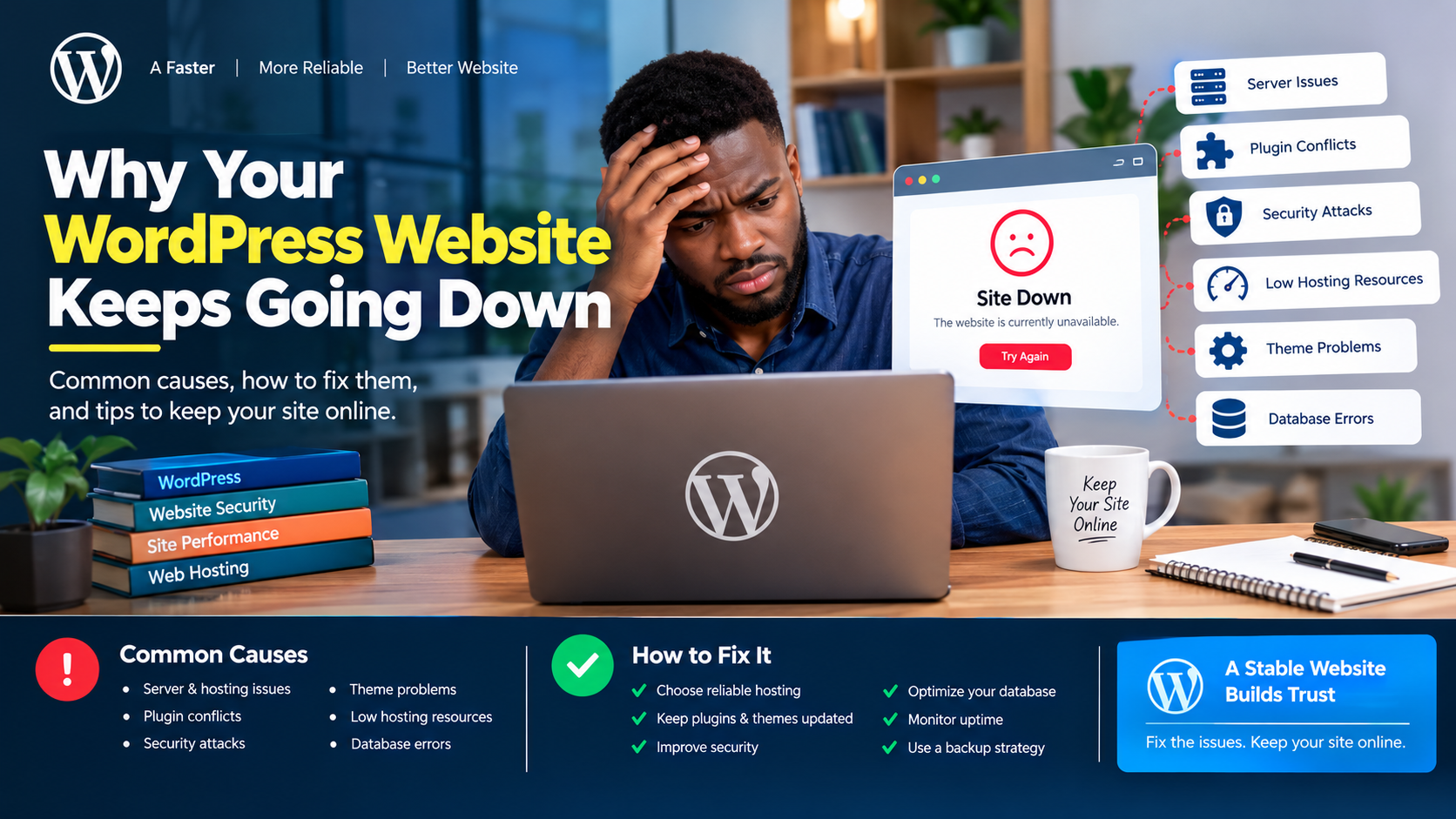
If your WordPress website keeps going down, the problem is usually not random. Recurring downtime can often be traced to hosting limitations, plugin or theme conflicts, PHP errors, database problems, security incidents, inadequate server resources, failed updates or configuration issues.
WordPress itself documents several of these as common problems, including database connection errors, internal server errors, connection timeouts, PHP errors and failed upgrades.
The good news is that you can usually narrow down the cause by troubleshooting the problem systematically.
1. Your Web Hosting May Be the Problem
One of the first places to investigate when your WordPress website repeatedly goes offline is your hosting environment.
If your hosting account has insufficient resources, your website may become slow, return errors or become temporarily unavailable when traffic increases.
This is particularly important for websites that experience sudden traffic spikes, such as:
- Nigerian news websites
- Online newspapers
- E-commerce stores
- Event websites
- Government-related information portals
- Popular blogs
- Viral-content websites
A shared hosting account may work perfectly when your website has relatively little traffic but struggle when hundreds or thousands of visitors arrive simultaneously.
WordPress documentation notes that connection timeouts can occur when a website is attempting to do more than the server can handle, and that this can be particularly common on shared hosting where memory is restricted.
What to ask your hosting company
If your website keeps going down, ask your host to check:
- CPU usage
- RAM/memory usage
- PHP workers
- Entry processes
- Disk space
- Inodes
- Database availability
- Server error logs
- Account resource limits
- Recent server outages
If your website regularly exceeds its hosting limits, upgrading the hosting environment may be necessary.
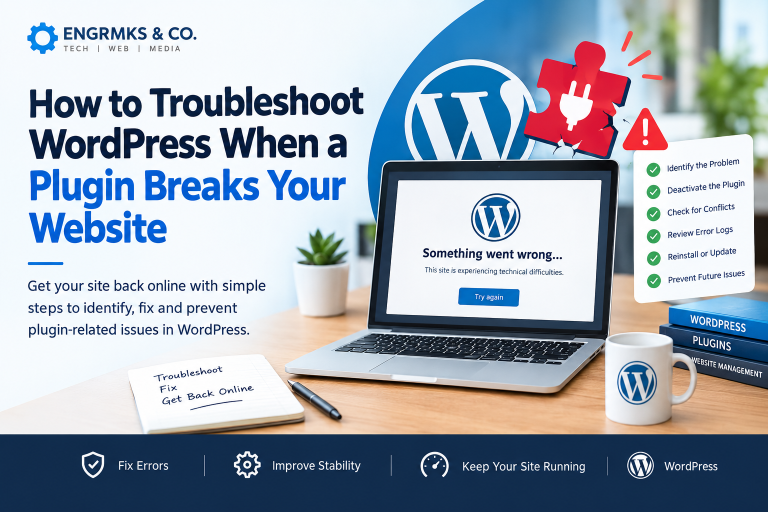
2. A Plugin May Be Crashing Your Website
WordPress plugins add functionality, but every additional plugin also introduces more code into your website.
A poorly coded, outdated or incompatible plugin can cause:
- PHP fatal errors
- White screens
- Slow loading
- Database problems
- Admin access problems
- Conflicts with other plugins
- Conflicts with your theme
- High server resource consumption
WordPress identifies plugin conflicts and compatibility problems as common causes of serious website errors.
If your website went down immediately after installing or updating a plugin, that plugin should be one of your first suspects.
What to do
If you can access WordPress:
- Go to Plugins.
- Identify recently installed or updated plugins.
- Deactivate the suspected plugin.
- Test the website.
- If the problem disappears, investigate that plugin further.
- Look for an updated version or a compatible alternative.
If you cannot access the WordPress dashboard, plugins can also be disabled through your hosting File Manager or SFTP by temporarily renaming the plugins directory. WordPress documents this as one troubleshooting method when the administration screens are inaccessible.
3. Your Theme Could Be Causing the Problem
Themes can also introduce compatibility problems.
This may happen after:
- Installing a new theme
- Updating a theme
- Updating WordPress
- Updating PHP
- Adding custom code
- Installing a page builder
- Modifying
functions.php
If the problem started immediately after a theme change, temporarily switching to a default WordPress theme can help determine whether the theme is responsible.
Never make major changes to a production website without a recent backup.
4. Your PHP Version May Be Outdated or Incompatible
WordPress depends heavily on PHP, which runs on your web server.
An outdated PHP environment can create performance, security and compatibility problems.
WordPress recommends keeping PHP up to date and notes that newer PHP versions can provide performance and security benefits. However, WordPress also cautions that themes and plugins should be checked for compatibility before changing PHP versions.
Before changing PHP:
Back up your website first.
Then check:
- Current PHP version
- WordPress compatibility
- Theme compatibility
- Plugin compatibility
- Hosting configuration
If you are unsure which PHP version to use, ask your hosting provider or developer to verify the appropriate supported version for your WordPress installation and its extensions.
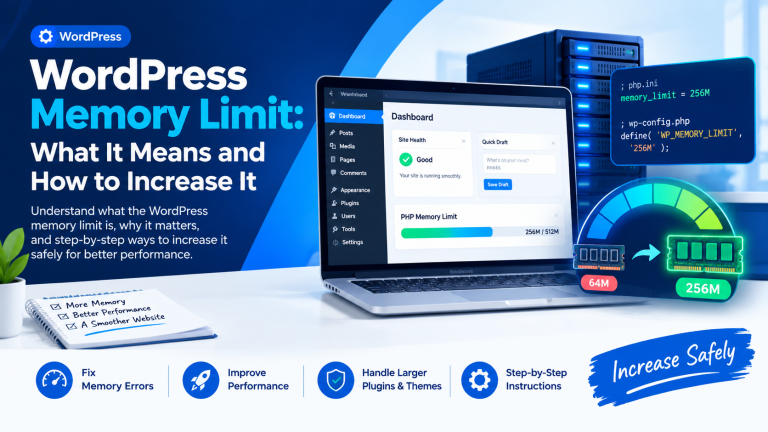
5. Your Website May Be Running Out of Memory
A WordPress site can encounter problems when PHP does not have enough memory to complete a task.
This may result in messages such as:
“Allowed memory size exhausted.”
It can happen when a website has:
- Resource-heavy plugins
- Complex page builders
- Large imports
- Image-processing tasks
- Large databases
- Poorly optimized code
- Insufficient hosting resources
WordPress lists increasing the PHP memory limit as one possible troubleshooting step for memory-related errors.
However, simply increasing memory is not always the best solution.
If one plugin is consuming excessive resources, increasing the limit may only hide the underlying problem temporarily.
6. Your WordPress Database May Have Problems
Another common reason a WordPress website goes down is a database connection problem.
You may see:
“Error Establishing a Database Connection.”
According to WordPress documentation, possible causes include incorrect database credentials, problems with the web host, a database quota being reached or, in some cases, a compromised website.
Check:
- Database name
- Database username
- Database password
- Database host
- Database server status
- Database storage limits
If you recently migrated the website or changed hosting credentials, carefully check the database information in wp-config.php.
If you are not comfortable editing configuration files, contact your hosting provider or WordPress developer.
7. Your Website May Be Under a Security Attack
Security problems can also cause unexpected downtime.
A compromised website may experience:
- Abnormally high server usage
- Redirects to suspicious websites
- Unknown administrator accounts
- Modified files
- Spam pages
- Unexpected pop-ups
- Database changes
- Slow performance
- Server suspension
If your hosting company tells you that your account has been suspended because of malware or excessive resource usage, treat the situation as a security incident rather than simply a performance problem.
Change compromised credentials, scan the website, remove malicious code and determine how the attacker gained access.
Do not simply restore an old backup and assume the problem is permanently solved without investigating the source of the compromise.
8. A WordPress Update May Have Failed
WordPress, plugins and themes are regularly updated.
Sometimes an update can fail because of:
- Server interruptions
- File-permission problems
- Incompatible software
- Insufficient resources
- Interrupted connections
- PHP compatibility issues
A failed update can leave the website displaying an error or maintenance message.

WordPress’s troubleshooting documentation specifically covers failed auto-upgrades and maintenance-mode problems among its common errors.
Before updating
Always have a recent backup.
WordPress recommends maintaining backups of both the website files and database, because they are separate components of a typical WordPress installation.
9. Your Website May Be Experiencing a Plugin or Theme Conflict
Sometimes there is nothing inherently wrong with an individual plugin.
The problem may be the combination of two or more pieces of software.
For example:
Plugin A + Plugin B + Theme C + Current WordPress version
may produce an error even though each component works correctly by itself.
This is why troubleshooting should be systematic.
Deactivate plugins one at a time rather than randomly changing many settings at once.
Once you identify the suspected component, you can investigate compatibility, update it, replace it or contact its developer.
10. Use WordPress Recovery Mode
Modern WordPress installations include a useful feature called Recovery Mode.
When WordPress detects certain fatal PHP errors, Recovery Mode can pause the faulty plugin or theme for the administrator’s session and allow access to the dashboard so the problem can be investigated.
If WordPress sends a recovery email to the administrator, follow the special Recovery Mode link.
Once inside, look for notices identifying the plugin, theme or component that caused the fatal error.
This can be much safer than immediately modifying WordPress files manually.
11. Check WordPress Site Health
If your website is still accessible, go to:
Dashboard → Tools → Site Health
WordPress Site Health checks various aspects of your installation and can highlight critical problems and recommended improvements involving configuration, security, PHP, plugins and other components.
Pay attention to:
- Critical issues
- Recommended improvements
- PHP version
- Plugin updates
- Theme updates
- HTTPS
- Scheduled events
- REST API
- Loopback requests
- Background tasks
Site Health should be part of your routine WordPress maintenance rather than something you check only after a crash.
12. Your Server May Be Timing Out
A timeout occurs when a request takes too long to complete.
Possible causes include:
- Heavy database queries
- Resource-intensive plugins
- Large imports
- Slow external API requests
- Insufficient PHP workers
- Low server resources
- Poorly optimized code
WordPress lists connection timeouts and maximum execution-time problems among common WordPress errors.
If your website repeatedly times out, ask your hosting provider to review the server logs instead of simply increasing timeout limits without identifying the underlying cause.
13. Too Many Plugins Can Increase Complexity
There is no universal WordPress rule saying that a particular number of plugins will make a website crash.
The more important question is what the plugins do and how well they are maintained.
A website with 25 lightweight, well-maintained plugins may be more stable than a website with five poorly coded or resource-intensive plugins.
Review your plugins regularly.
Remove plugins that are:
- Unused
- Abandoned
- Duplicating another function
- No longer necessary
- Causing conflicts
- Consuming excessive resources
Keep the software you actually need and maintain it properly.
14. Your Website May Be Overloaded by Traffic
A sudden traffic spike can overwhelm a small hosting environment.
For example, a Nigerian news website may suddenly receive a huge number of visitors after publishing:
- Breaking political news
- Election results
- Major government announcements
- Sports breaking news
- Celebrity news
- Emergency information
- Viral stories
If the server cannot handle the traffic, visitors may see slow loading, timeouts or server errors.
For high-traffic websites, consider:
- Better hosting
- Page caching
- Object caching
- A CDN
- Image optimization
- Database optimization
- Efficient themes
- Fewer unnecessary third-party scripts
The solution should be based on actual server and application metrics rather than guessing.
15. Do Not Ignore Your Error Logs
Error logs can provide valuable clues about why your website keeps going down.
Your hosting provider may provide:
- PHP error logs
- Apache/Nginx logs
- Access logs
- Resource usage logs
- Database logs
- Security logs
WordPress also provides debugging tools that can log PHP errors and warnings.
However, WordPress’s developer documentation cautions that debugging tools are intended primarily for development and staging environments and that displaying errors publicly can expose sensitive information.
If you enable debugging on a live site for troubleshooting, configure it carefully so errors are logged rather than exposed to visitors, and disable unnecessary debugging once the investigation is complete.
16. Create a Proper Backup Strategy
One of the biggest mistakes website owners make is waiting until their website crashes before thinking about backups.
A complete WordPress backup should account for both:
1. Website files
and
2. Database
WordPress documentation explains that backing up your files alone does not normally back up your database, and both are needed to fully restore a typical WordPress installation.
Maintain regular backups and test that they can actually be restored.
A backup that has never been tested is not something you should blindly depend on during an emergency.
17. How to Troubleshoot a WordPress Website That Is Down
When your website goes offline, don’t immediately start changing everything.
Follow a logical process.
Step 1: Check whether it is actually down
Try:
- Your normal browser
- A different browser
- Mobile data
- Another device
Sometimes the problem is local DNS, caching or connectivity rather than the server itself.
Step 2: Check your hosting account
Look for:
- Server status
- Resource usage
- Account suspension
- Disk-space warnings
- Error logs
- Database availability
Step 3: Check recent changes
Ask:
What changed immediately before the problem started?
Was there a:
- Plugin update?
- Theme update?
- WordPress update?
- PHP change?
- New plugin?
- New custom code?
- Hosting migration?
The answer can significantly narrow the investigation.

Step 4: Check WordPress Recovery Mode
If available, use it to identify fatal plugin or theme errors.
Step 5: Check Site Health
Review Tools → Site Health once dashboard access is restored.
Step 6: Check server logs
If the cause is still unclear, ask your hosting provider or developer to review the relevant logs.
Step 7: Restore a known-good backup if necessary
If the website is severely damaged and you have a verified recent backup, restoration may be appropriate.
18. How to Prevent Your WordPress Website From Going Down
Prevention is much better than repeatedly fixing the same outage.
Use this maintenance checklist:
☐ Choose appropriate hosting
☐ Keep WordPress updated
☐ Keep plugins updated
☐ Keep themes updated
☐ Maintain a supported PHP environment
☐ Remove unnecessary plugins
☐ Monitor server resources
☐ Maintain regular backups
☐ Test backups periodically
☐ Use strong administrator credentials
☐ Monitor security
☐ Monitor uptime
☐ Review error logs
☐ Check Site Health
☐ Test major updates before applying them to a production site where practical
☐ Use staging for significant changes
☐ Monitor traffic spikes
☐ Optimize heavy database and application processes
WordPress itself recommends keeping the installation, plugins and themes up to date and using backups when managing automatic updates.
Final Thoughts
If your WordPress website keeps going down, don’t assume that WordPress itself is the problem.
Recurring downtime can come from your hosting environment, insufficient resources, plugin conflicts, theme problems, PHP compatibility, database failures, security incidents, failed updates or configuration errors.
The most effective approach is to identify the pattern.
When does the website go down?
What error appears?
What changed immediately before the outage?
What do the hosting and WordPress logs show?
Once you identify the underlying cause, you can address the problem instead of repeatedly restarting the website and hoping it stays online.
For businesses, publishers and Nigerian online platforms that depend on their websites for customers, advertising, leads or news distribution, uptime should be treated as an ongoing maintenance responsibility—not an emergency task.
A stable WordPress website requires three things working together: reliable hosting, properly maintained WordPress software and continuous monitoring.
If your site keeps crashing despite repeated fixes, the problem may be deeper than a single plugin or theme. At that point, have your hosting provider or WordPress developer perform a complete server, application, database and security audit.