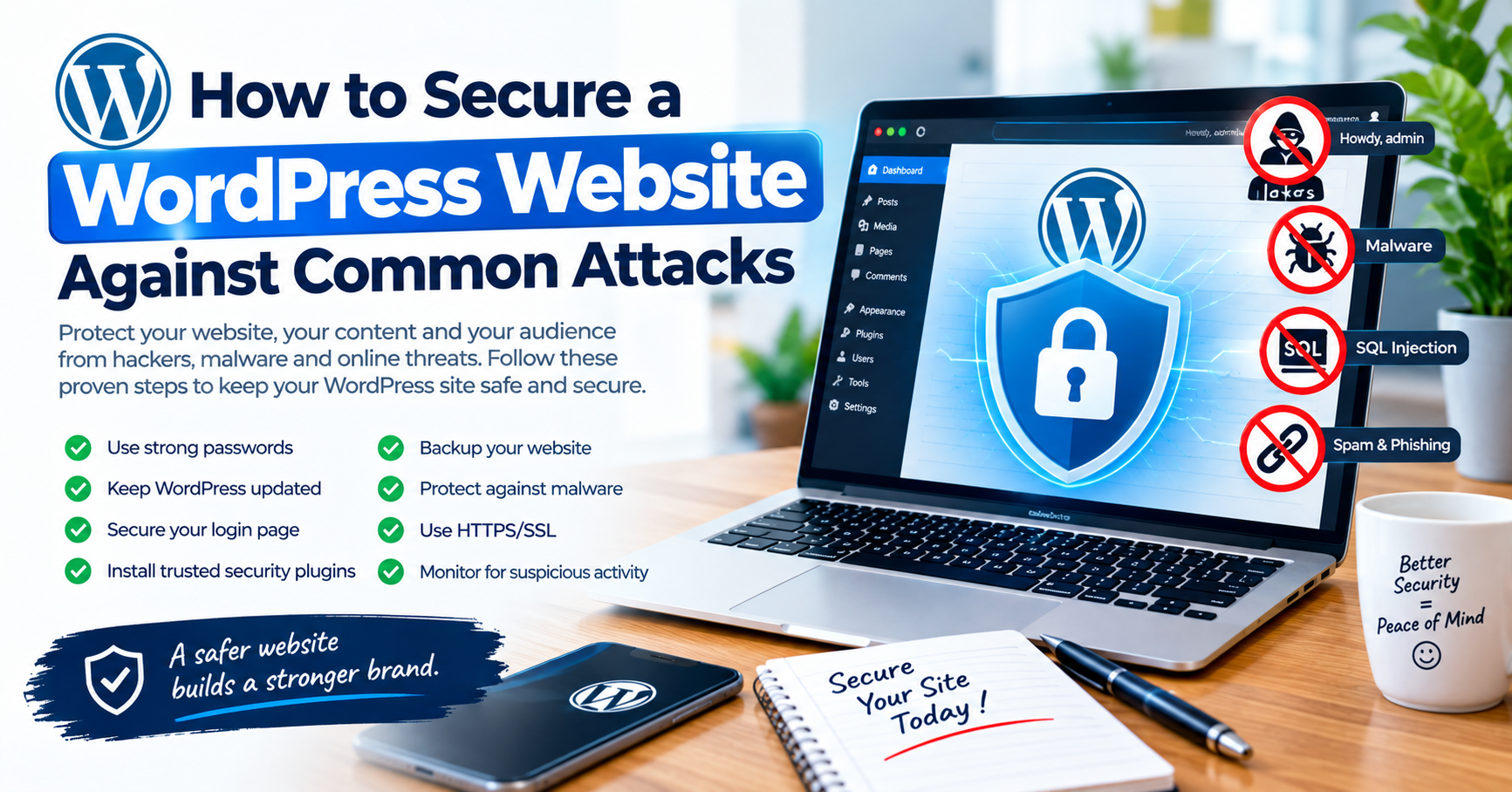
How to Secure a WordPress Website Against Common Attacks
Introduction
WordPress powers millions of websites around the world, including business websites, blogs, online newspapers, magazines and content platforms. Its popularity, however, also makes WordPress websites frequent targets for automated attacks, brute-force login attempts, malware, vulnerable plugins and other security threats.
For content creators, bloggers and news publishers, website security is particularly important. A compromised website can result in stolen accounts, deleted articles, malicious redirects, spam pages, blacklisting by search engines, loss of advertising revenue and damage to a publisher’s reputation.
The good news is that securing a WordPress website does not always require complicated technical knowledge. Many of the most important security measures involve keeping software updated, using strong authentication, maintaining reliable backups and reducing unnecessary access.
WordPress itself recommends keeping WordPress core, plugins and themes updated and using actively maintained software.
Here are practical steps you can take to secure your WordPress website against common attacks.
1. Keep WordPress Core Updated
One of the simplest and most important WordPress security measures is keeping WordPress up to date.
WordPress releases updates that can include security fixes. Older versions may contain vulnerabilities that attackers can attempt to exploit.
For example, WordPress 7.1.2, released on September 22, 2026, included a security fix, demonstrating why website owners should pay attention to security releases rather than postponing updates indefinitely.
Go to:
WordPress Dashboard → Updates
Check that your WordPress installation is current.
For publishers managing several websites, establishing a regular update and maintenance routine can significantly reduce the risk of leaving known vulnerabilities unpatched.
2. Update Plugins and Themes Regularly
Plugins and themes add functionality to WordPress, but outdated or poorly maintained extensions can introduce security risks.
WordPress recommends keeping plugins and themes updated and choosing extensions that are actively maintained.
Before installing a plugin, consider:
- Is it actively maintained?
- When was it last updated?
- Is it compatible with your WordPress version?
- Does it have a reliable developer?
- Is it actually necessary?
- Does it have a history of security problems?
Avoid downloading premium plugins or themes from unofficial websites simply because they are offered for free. Modified or “nulled” software can introduce malicious code into your website.
3. Use Strong Administrator Passwords
Weak administrator passwords can make it easier for attackers to gain access through automated login attempts.
Your WordPress administrator account should have a unique, strong password that is not reused on other websites.
Avoid passwords based on:
- Your name
- Website name
- Company name
- Phone number
- Date of birth
- Common words
- Simple number combinations
WordPress recommends strong passwords and also encourages additional authentication measures such as two-step authentication.
For news websites with several editors and reporters, every person should have their own account instead of sharing one administrator password.
4. Enable Two-Factor Authentication
A strong password is important, but it should not be your only line of defence.
Two-factor authentication, commonly called 2FA, adds another verification step when someone attempts to sign in.
This means that even if an attacker obtains a password, they may still be unable to access the account without the additional authentication method.
This is particularly important for:
- WordPress administrators
- Website owners
- Editors
- Developers
- Hosting administrators
If your security plugin or identity system supports two-factor authentication, consider enabling it for privileged accounts.
5. Remove Unused Plugins and Themes
Unused plugins and themes can create unnecessary security exposure.
If you installed a plugin months ago and no longer use it, there may be little reason to keep it active—or even installed.
Review:
Dashboard → Plugins → Installed Plugins
Remove plugins that are unnecessary.
You should also review:
Appearance → Themes
Delete old themes that are no longer required, while keeping an appropriate default WordPress theme available for troubleshooting where practical.
Reducing unnecessary software also makes website maintenance easier.
6. Use a WordPress Security Plugin or Firewall
A reputable security solution can provide additional protection against common threats.
Depending on the solution, security tools may help with:
- Malware scanning
- Login protection
- Brute-force protection
- Suspicious file detection
- Firewall rules
- Security notifications
- IP blocking
- File integrity monitoring
A Web Application Firewall (WAF) can also help filter malicious traffic before it reaches parts of your website.
However, a security plugin should not be considered a replacement for updates, backups, secure passwords and proper hosting.
7. Protect Your WordPress Login Page
WordPress login pages are common targets for automated attacks.
Attackers can repeatedly attempt usernames and passwords against /wp-login.php or related authentication endpoints.
You can reduce the risk by using measures such as:
- Strong passwords
- Two-factor authentication
- Login attempt protection
- Rate limiting
- A Web Application Firewall
- Secure hosting
- Removing unnecessary administrator accounts
Do not rely solely on changing the login URL as your primary security strategy. Authentication security should be layered.
8. Create Regular, Tested Backups
A backup may be the difference between recovering quickly and losing your entire website.
WordPress recommends maintaining regular backups of your website data, including the database and website files.
For a news publisher, backups should ideally include:
- WordPress database
- Uploaded images
- Videos and media where applicable
- Themes
- Plugins
- WordPress configuration
- Important custom files
Do not assume that a backup is useful simply because a backup plugin says “Backup completed.”
Test your backups.
A backup that cannot be restored is not a reliable recovery strategy.
Consider maintaining copies outside the same hosting account. If an attacker compromises the hosting account, backups stored in the same environment may also be affected.
9. Secure Your Hosting Account and cPanel
WordPress security does not stop at the WordPress dashboard.
Your hosting account is also extremely important.
For websites hosted through cPanel, protect:
- cPanel login
- FTP/SFTP accounts
- Database credentials
- Email accounts associated with administration
- File Manager access
- SSH access, if enabled
Use strong, unique passwords and enable additional authentication where your hosting provider supports it.
If you manage multiple websites from one hosting account, remember that a compromise of the hosting environment can potentially affect more than one website.
10. Use HTTPS and an SSL Certificate
Your website should use HTTPS rather than sending visitors through an unsecured HTTP connection.
HTTPS encrypts communication between visitors and your website and is especially important for login pages, contact forms, membership systems and websites handling sensitive information.
After installing an SSL certificate, make sure WordPress and your website consistently use HTTPS.
Also check for mixed-content problems where some resources continue loading through HTTP.
11. Limit WordPress User Permissions
Not every person working on a website needs administrator privileges.
WordPress provides different user roles, allowing website owners to give people appropriate levels of access.
For example, a reporter who only needs to create articles may not need administrator privileges.
Use the principle of least privilege:
Give users only the permissions they need to perform their work.
This becomes especially important for online newspapers where several journalists, editors and contributors may access the same WordPress installation.
12. Monitor Your Website for Suspicious Activity
Do not wait until your homepage is replaced with a hacker’s message before checking your website.
Monitor your website regularly for:
- Unknown administrator accounts
- Unexpected plugins
- Strange files
- Suspicious redirects
- New spam pages
- Unexpected changes to articles
- Unusual login activity
- Sudden SEO traffic changes
- Search engine security warnings
Google may also display security warnings when websites are identified as distributing malware or presenting other security problems.
WordPress’s official hacked-site guidance recommends documenting what happened, scanning the website, securing access and maintaining backups when dealing with a suspected compromise.
13. Protect wp-config.php and Sensitive Files
The wp-config.php file contains important WordPress configuration information, including database connection details.
It should not be publicly accessible.
Your hosting environment should also be configured appropriately to prevent visitors from accessing sensitive files or directories.
Avoid modifying security-related server configuration without understanding its effect, especially on live news websites.
If you are not comfortable working with .htaccess, server configuration or file permissions, consider getting assistance from a qualified WordPress developer or hosting administrator.
14. Be Careful With Third-Party Code
Many WordPress websites use custom snippets, advertising scripts, analytics tools and third-party integrations.
Every additional piece of code can introduce another potential point of failure.
Before adding code to your website, ask:
- Where did it come from?
- Who maintains it?
- Does it need administrator access?
- Does it collect user information?
- Can it affect website performance?
- Can it be removed easily if a problem occurs?
This is particularly important for publishers that use advertising networks, social media integrations, analytics platforms and external widgets.
15. Have a Recovery Plan
Even a well-secured WordPress website can experience problems.
Your website may be affected by a compromised plugin, stolen credentials, hosting problems, malicious code or a configuration error.
Therefore, security should include a recovery plan.
Know:
- Where your backups are stored.
- How to restore your website.
- How to reset WordPress passwords.
- How to reset hosting credentials.
- How to disable suspicious plugins.
- How to contact your hosting provider.
- How to investigate suspicious changes.
WordPress also has a built-in Recovery Mode that can help administrators troubleshoot certain fatal errors caused by plugins, themes or custom code.
WordPress Security Checklist for Bloggers and News Publishers
Use this quick checklist to review your website:
- WordPress core is updated
- Plugins are updated
- Themes are updated
- Unused plugins have been removed
- Unused themes have been removed
- Administrator passwords are strong
- Two-factor authentication is enabled
- User permissions are properly assigned
- Regular backups are available
- Backups have been tested
- SSL/HTTPS is working correctly
- Hosting and cPanel accounts are protected
- Security monitoring is enabled
- Suspicious users and files are reviewed
- A website recovery plan exists
Final Thoughts
Learning how to secure a WordPress website is not just about installing a security plugin. Effective protection requires several layers working together.
Keep WordPress, plugins and themes updated. Use strong passwords and two-factor authentication. Remove unnecessary software, protect your hosting account, maintain reliable backups and monitor the website for suspicious activity.
For Nigerian bloggers, content creators and news publishers, these steps are particularly important because a website is often more than a publishing platform—it may be the organisation’s primary source of audience, advertising revenue, search traffic and credibility.
WordPress security is an ongoing process rather than a one-time task. Make website security part of your regular maintenance routine, and review your setup whenever you introduce a new plugin, theme, user, hosting service or third-party integration.
A secure website is easier to maintain, easier to recover and better positioned to serve its audience reliably.
Frequently Asked Questions
Is WordPress secure?
Yes. WordPress has an active security team and regularly releases security updates. However, website security also depends on how WordPress, plugins, themes, hosting and user accounts are managed.
What is the most important WordPress security measure?
There is no single measure that protects every website. Keeping WordPress and its plugins and themes updated, using strong authentication, maintaining tested backups and securing hosting access are all important components of a layered security strategy.
Can a WordPress security plugin completely protect my website?
No security plugin can guarantee complete protection. A security plugin can provide useful monitoring and protection, but it should work alongside updates, strong authentication, backups and secure hosting.
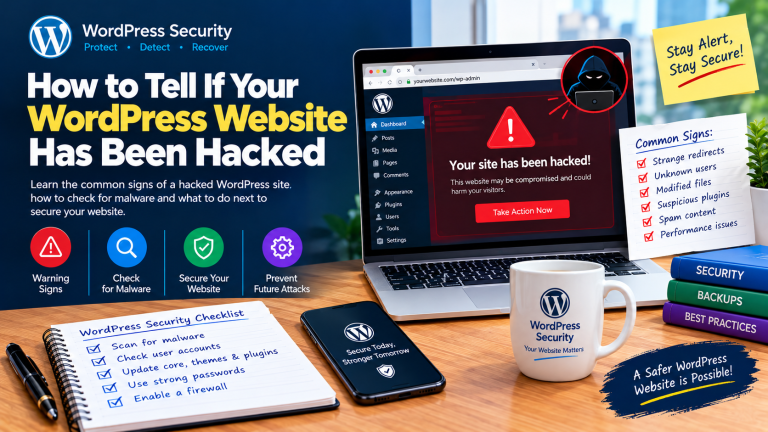
What should I do if my WordPress website has been hacked?
Document the symptoms, secure administrator and hosting access, scan the website, identify the likely source of the compromise and restore from a known-good backup where appropriate. For serious compromises, consider professional incident-response assistance. WordPress provides official guidance for hacked websites.
How often should I check my WordPress security?
Security should be monitored continuously, while a more detailed security review can be included in your regular website maintenance routine. High-traffic news websites may benefit from more frequent monitoring because they are constantly receiving visitors, publishing content and processing administrator activity.