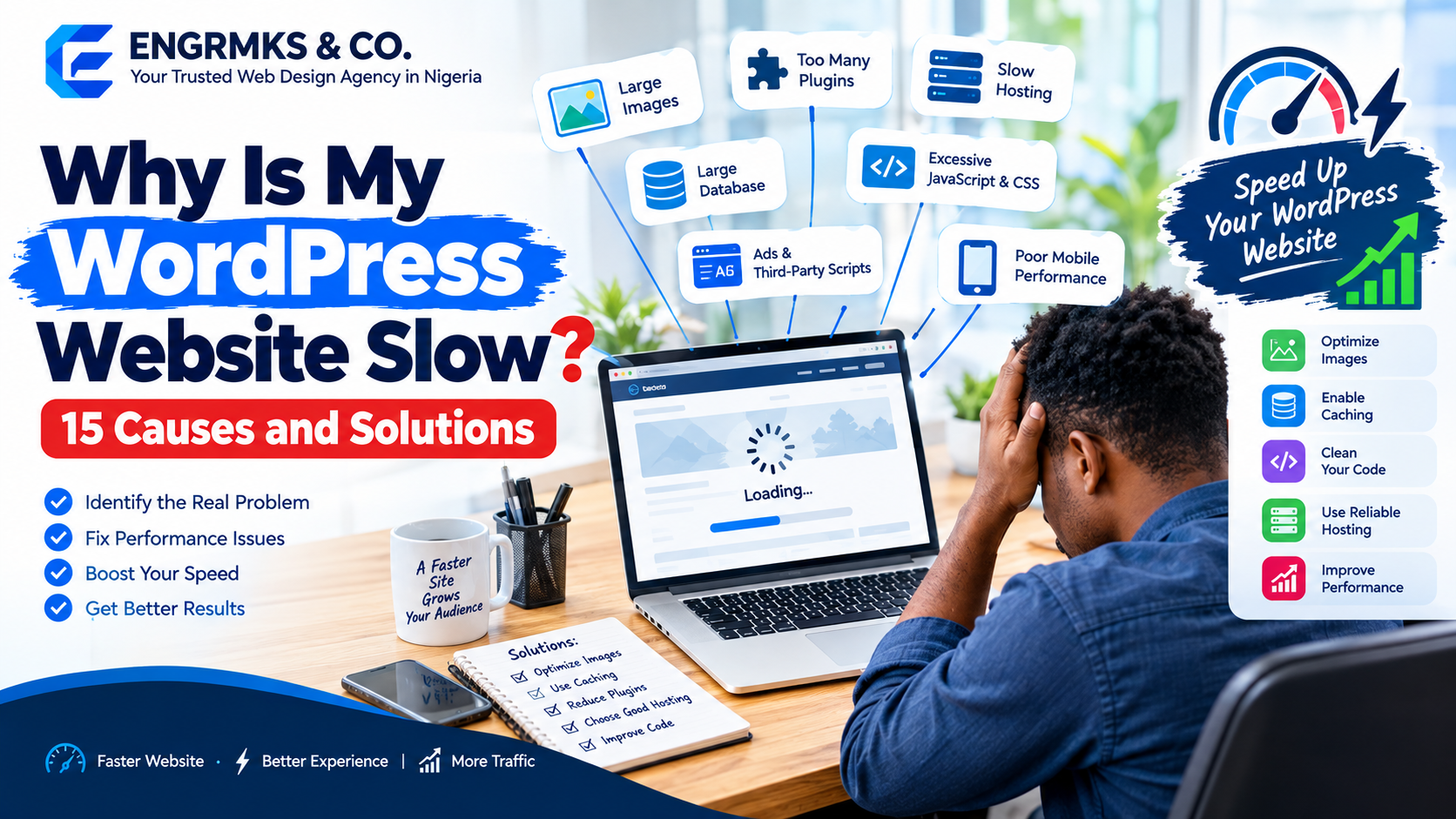
Why Is My WordPress Website Slow? 15 Causes and Solutions
Why is my WordPress website slow? If your website takes too long to load, visitors may leave before reading your content, customers may abandon your pages, and your website may provide a frustrating experience—especially on mobile devices.
Website speed is particularly important for content creators, bloggers, business owners, and news publishers. A news website with large images, advertisements, social-media embeds, videos, analytics scripts, and dozens of plugins can become noticeably slower as the site grows.
Read also: 10 Common Website Mistakes Nigerian Businesses Make (And How to Fix Them)
The good news is that a slow WordPress website can usually be improved.
In this guide, we will explain 15 common reasons why WordPress websites become slow and practical solutions for fixing each problem.
1. Your Web Hosting Is Too Slow
Your hosting server is one of the foundations of your website’s performance.
Even if your WordPress installation is perfectly optimized, a weak or overloaded hosting environment can cause slow server responses.
This is especially common with inexpensive shared hosting where many websites share the same server resources.
WordPress identifies hardware performance, server load, hosting environment, and available resources as important performance factors.
Solution
Consider moving to better hosting if:
- Your server response time is consistently high.
- Your website becomes extremely slow during traffic spikes.
- Your hosting account regularly reaches CPU or memory limits.
- Your website frequently experiences downtime.
- Your current hosting environment cannot handle your traffic.
For growing news websites, upgrading from basic shared hosting to a more powerful WordPress, VPS, cloud, or dedicated environment may become necessary.
2. You Have Too Many WordPress Plugins
Plugins add functionality to WordPress, but every plugin can potentially introduce additional database queries, scripts, stylesheets, API requests, or background processes.
That does not mean that having a particular number of plugins automatically makes a website slow.
The important issue is the quality and performance impact of the plugins installed.
A poorly coded plugin can have a greater performance impact than several lightweight plugins.
Solution
Review your plugins regularly.
Remove plugins that:
- You no longer use.
- Duplicate another plugin’s functionality.
- Add unnecessary features.
- Load excessive scripts.
- Cause conflicts.
- Consume excessive server resources.
WordPress specifically recommends deactivating and deleting unnecessary plugins and testing plugins individually when investigating performance problems.
Important: Deactivate and delete plugins safely, and create a backup before making major changes.
3. Your Images Are Too Large
Large images are among the most common causes of slow websites.
For example, uploading a 5 MB photograph directly from a camera or phone when the website only needs a much smaller image wastes bandwidth and increases loading time.
This is especially important for news publishers because articles often contain multiple photographs.
Solution
Before uploading images:
- Resize them to appropriate dimensions.
- Compress them.
- Use modern formats such as WebP where appropriate.
- Avoid uploading unnecessarily huge images.
- Use responsive image sizes.
- Enable lazy loading where appropriate.
WordPress recommends optimizing images and notes that modern formats such as WebP can reduce file size.
For news publishers
Instead of uploading a 6000 × 4000 pixel photograph to every article, create appropriately sized versions for:
- Featured images.
- Article content.
- Thumbnails.
- Social sharing.
- Mobile displays.
4. You Are Not Using Caching
Caching can dramatically improve WordPress performance.
Instead of generating the same page from scratch every time someone visits it, a caching system can store a ready-to-serve version of the page.
WordPress documentation describes caching as one of the quickest ways to improve performance and discusses page, browser, object, and server caching.
Solution
Use an appropriate caching solution.
Depending on your hosting environment, this may include:
- Page caching.
- Browser caching.
- Object caching.
- Server-level caching.
- CDN/edge caching.
However, do not install several caching plugins and enable overlapping features without understanding how they interact.
More caching plugins do not necessarily mean a faster website.
5. Your WordPress Theme Is Too Heavy
Your theme controls a large portion of what WordPress loads on the front end.
Some themes include:
- Multiple sliders.
- Animation libraries.
- Page builders.
- Large JavaScript files.
- Numerous font files.
- Unused CSS.
- Complex layouts.
- Additional widgets.
A visually impressive website can therefore become unnecessarily expensive to load.
WordPress notes that the theme can have a significant impact on website performance and recommends using efficient themes.
Solution
Choose a lightweight, well-coded theme.
If your website is a news publication, avoid loading features that you never use.
A simple, optimized theme can often provide a better experience than a theme packed with hundreds of unnecessary features.
6. Your Database Has Become Bloated
WordPress stores a large amount of information in its database.
Over time, the database may accumulate:
- Post revisions.
- Transients.
- Unused plugin data.
- Spam comments.
- Trashed content.
- Unnecessary metadata.
- Large option entries.
- Other temporary information.
An inefficient database can contribute to slower queries and server processing.
WordPress provides database optimization tools, including WP-CLI’s database optimization command.
Solution
Regularly review and optimize your database.
Before making database changes:
Always create a complete backup.
Do not randomly delete database tables because you do not recognize their names. Some tables may belong to active plugins or themes.
7. You Have Too Much JavaScript
JavaScript is essential for many modern websites, but excessive JavaScript can delay rendering and interaction.

Your website may load JavaScript from:
- Themes.
- Plugins.
- Analytics tools.
- Advertising platforms.
- Social-media widgets.
- Chat systems.
- Popups.
- Page builders.
- Tracking tools.
Solution
Identify unnecessary JavaScript and reduce what the browser needs to process.
Depending on your setup, you can:
- Remove unnecessary scripts.
- Delay non-critical JavaScript.
- Defer scripts where appropriate.
- Minify files.
- Reduce third-party scripts.
- Load scripts only on pages where they are needed.
Be careful with aggressive JavaScript optimization because incorrectly delaying or combining scripts can break website functionality.
8. Too Many External Services Are Loading
Your WordPress website may depend on services hosted elsewhere.
Examples include:
- Facebook widgets.
- X/Twitter embeds.
- YouTube videos.
- Google Analytics.
- Advertising networks.
- Live chat.
- Social sharing tools.
- External fonts.
- Maps.
- Third-party tracking systems.
Each external service can introduce additional requests and dependencies.
Solution
Review every external service your website loads.
Ask:
Does this feature provide enough value to justify its performance cost?
If the answer is no, remove it.
For example, a news website may not need five different social widgets displayed on every page.
9. Your Website Has Too Many Advertisements
Advertising is an important source of income for many publishers.
However, excessive advertisements can negatively affect page performance and user experience.
Advertising systems may require multiple scripts, network requests, and resources.
This becomes particularly noticeable on news websites.
Solution
Review:
- Number of ad placements.
- Ad sizes.
- Auto-refresh settings.
- Third-party scripts.
- Ads appearing above the main content.
- Ads loading unnecessarily on every page.
The goal is not necessarily to remove advertising.
Instead, find a balance between revenue, performance, readability, and user experience.
Read also: Voice Search Optimisation for Nigerian Websites (2025 Guide)
10. Your Website Is Not Using a CDN
A Content Delivery Network, commonly called a CDN, can distribute static resources through servers positioned in different geographic locations.
This can reduce the distance between visitors and resources such as:
- Images.
- CSS.
- JavaScript.
- Fonts.
- Other static files.
WordPress documentation notes that CDNs can reduce load on the origin server and improve delivery of static content.
Solution
Consider using a CDN if:
- Your visitors come from different countries.
- Your website contains many images.
- Your website receives significant traffic.
- Your origin server struggles during traffic spikes.
A CDN is particularly useful for websites with geographically distributed audiences.
11. Your Website Is Not Optimized for Mobile
A website may appear reasonably fast on a powerful desktop computer but feel extremely slow on a smartphone.
Mobile visitors may have:
- Slower connections.
- Less powerful devices.
- Limited data.
- Smaller screens.
Solution
Test your website on mobile devices.
Check:
- Image sizes.
- Font loading.
- JavaScript.
- Advertisements.
- Popups.
- Layout shifts.
- Menu performance.
- Page-builder elements.
Do not optimize only for your own computer.
Your readers may be experiencing a completely different website.
12. Your Website Has Poor Caching Configuration
Installing a caching plugin is not the same as properly configuring caching.
For example, WordPress distinguishes between page caching, persistent object caching, browser caching, and opcode caching. These systems perform different jobs.
A poorly configured caching system can result in:
- Pages not being cached.
- Stale content.
- Cache conflicts.
- Broken dynamic features.
- Logged-in users seeing inappropriate cached content.
- Cache files being generated inefficiently.
Solution
Configure caching according to your hosting environment and website requirements.
For a news website, special care may be required because articles and homepage content can change frequently.
13. Your Server Has Limited CPU or Memory
WordPress requires server resources to execute PHP code, communicate with the database, process plugins, generate pages, and handle visitors.
If your website repeatedly reaches resource limits, performance can deteriorate.
This is especially common during sudden traffic spikes.
Imagine a news website publishing a major breaking story that suddenly attracts tens of thousands of visitors.
A server that handles normal traffic comfortably may struggle under the sudden demand.
Solution
Monitor your hosting resource usage.
If your website regularly reaches CPU, RAM, I/O, or process limits, consider:
- Optimizing the website.
- Enabling caching.
- Using a CDN.
- Upgrading hosting.
- Reducing expensive processes.
- Using persistent object caching where appropriate.
- Moving to a more scalable infrastructure.
14. Your WordPress Software Is Outdated
WordPress websites consist of several components:
- WordPress core.
- PHP.
- Theme.
- Plugins.
- Database.
- Server software.
Outdated software can create compatibility and performance problems.
WordPress recommends keeping software such as WordPress, PHP, database, and server components up to date because newer versions can include bug fixes and performance improvements.
Solution
Keep your website components updated—but do it safely.
Before major updates:
- Back up your website.
- Update plugins and themes.
- Test the website.
- Check important functions.
- Monitor for errors.
Avoid updating everything blindly on a critical production website without a backup or testing process.
15. You Have Too Many Autoloaded Options
This is a more advanced WordPress performance issue.
WordPress stores configuration information in the database, and some options are configured to load automatically during requests.
If a website accumulates excessive autoloaded data, it can increase the amount of information WordPress needs to process.
WordPress documentation specifically discusses autoloaded options and recommends monitoring their size, while noting that persistent object caching can make database access more efficient.
Solution
If your website is experiencing persistent performance problems, ask an experienced WordPress developer or hosting administrator to inspect the wp_options table and identify unusually large autoloaded data.

Do not manually delete options unless you know exactly what they do.
How to Find Out What Is Making Your WordPress Website Slow
Before installing another optimization plugin, measure the problem first.
Useful performance-testing approaches include:
1. Test your homepage
Check how quickly the homepage loads.
2. Test an article page
News publishers should test several article URLs—not just the homepage.
3. Test mobile performance
Desktop performance does not necessarily represent mobile performance.
4. Check server response time
A slow server response can indicate a hosting, database, plugin, or server-side problem.
5. Check Core Web Vitals
Google uses Core Web Vitals as part of its page experience considerations, and Google’s current documentation identifies LCP, INP, and CLS as Core Web Vitals.
These metrics broadly cover:
- LCP: how quickly the main content becomes visible.
- INP: how responsive the page is to user interactions.
- CLS: how much the page layout unexpectedly moves.
Do not focus on one score alone. Look at the underlying causes.
Quick WordPress Speed Optimization Checklist
If your WordPress website is slow, work through this checklist:
- Test the website before making changes.
- Optimize large images.
- Enable appropriate caching.
- Remove unnecessary plugins.
- Review your theme.
- Reduce unnecessary JavaScript.
- Reduce third-party scripts.
- Optimize database performance.
- Check hosting resources.
- Consider a CDN.
- Improve mobile performance.
- Update WordPress and PHP safely.
- Check server response time.
- Review advertisements.
- Investigate autoloaded options.
- Monitor Core Web Vitals.
- Test again after each major optimization.
What News Publishers Should Pay Special Attention To
News websites have unique performance challenges.
A typical news article may contain:
- Multiple images.
- Advertisements.
- Related-post widgets.
- Social embeds.
- Video players.
- Analytics.
- Push-notification scripts.
- Comments.
- Trending-news widgets.
- Breaking-news tickers.
Each additional component can increase the amount of work required to render a page.
For that reason, news publishers should prioritize fast hosting, image optimization, caching, efficient themes, careful plugin selection, optimized advertising, and a clean website structure.
Also remember that a website should not be optimized only for a speed-testing score.
The real objective is to provide readers with a website that is fast, stable, readable, accessible, and easy to navigate.
Frequently Asked Questions
Why is my WordPress website suddenly slow?
A sudden slowdown can be caused by increased traffic, a problematic plugin, server resource limits, a new theme or plugin update, database problems, external scripts, or hosting issues.
Start by checking what changed immediately before the slowdown.
Does having too many plugins make WordPress slow?
Not necessarily. Plugin count alone is not a reliable measure of performance. The functionality, code quality, queries, scripts, and server resources used by individual plugins matter more.
Can images make my WordPress website slow?
Yes. Large, uncompressed images can consume significant bandwidth and increase page weight. Optimizing image dimensions and compression can reduce the amount of data visitors need to download.
Does a caching plugin make WordPress faster?
Caching can significantly improve performance when properly configured. WordPress documentation identifies caching as an important optimization technique.
However, caching should be configured correctly for your specific website.
Is cheap hosting responsible for a slow WordPress website?
It can be a contributing factor, particularly if the server is overloaded or your account has limited CPU, memory, I/O, or process resources. But hosting is only one possible cause.
How can I speed up my WordPress news website?
Start with image optimization, caching, hosting, plugin review, database performance, advertising scripts, third-party services, mobile optimization, and Core Web Vitals.
Final Thoughts
A slow WordPress website is not always caused by one problem.
In many cases, performance issues result from several small problems working together: oversized images, unnecessary plugins, heavy themes, slow hosting, database overhead, advertisements, third-party scripts, and insufficient caching.
The best approach is therefore to measure first, identify the real bottleneck, fix it, and test again.
For content creators and news publishers, website speed should be treated as part of the publishing strategy—not simply as a technical issue.
A faster website can provide readers with a smoother experience, make your content easier to consume, and give your website a stronger technical foundation for search visibility.
Read also: Voice Search Optimisation for Nigerian Websites (2025 Guide)
If your WordPress website is slow, don’t simply install another optimization plugin and hope for the best.
Find the cause. Fix the cause. Test the result. Then keep monitoring your website.