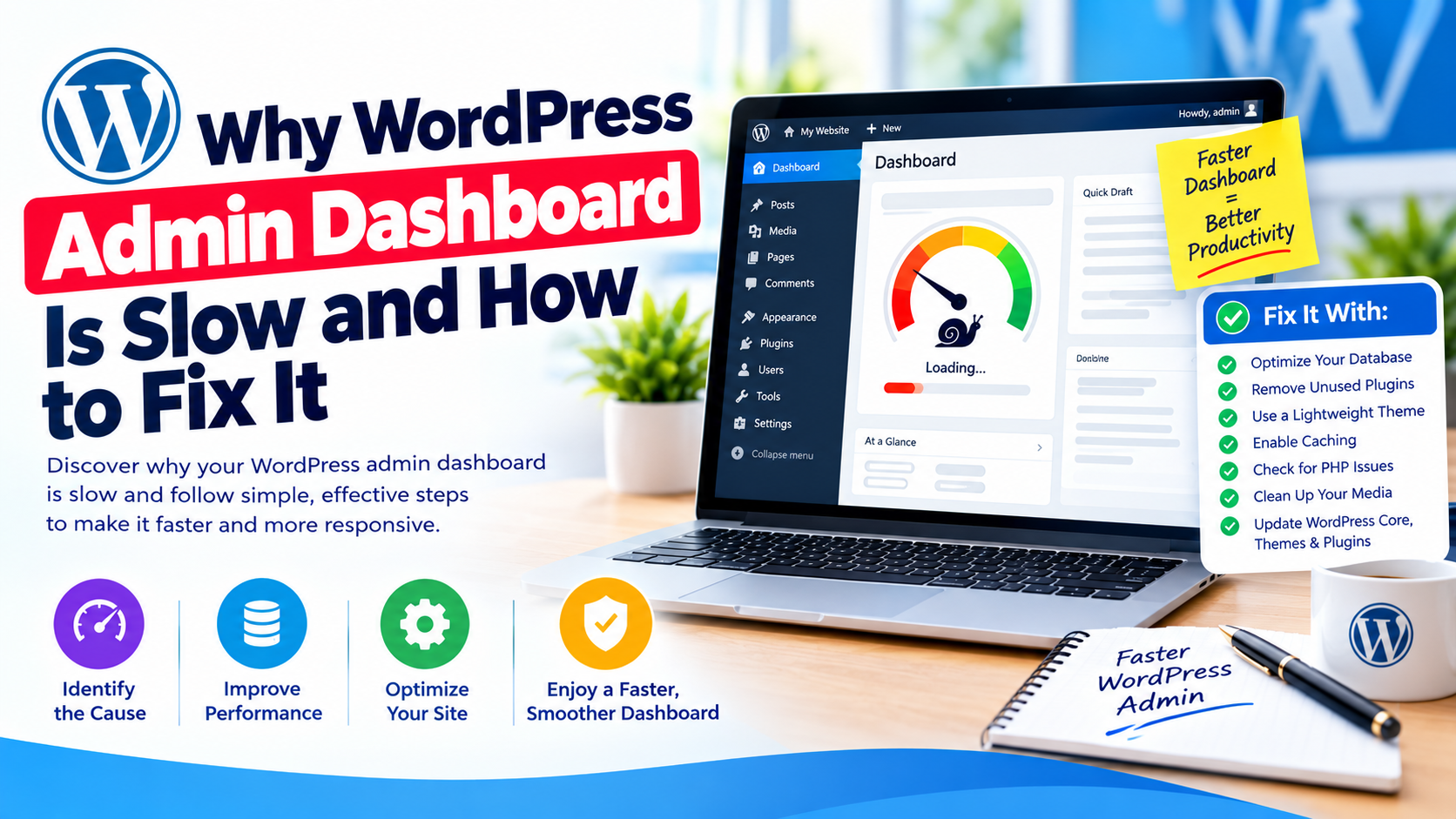
Why WordPress Admin Dashboard Is Slow and How to Fix It
A slow WordPress admin dashboard can make even simple website management frustrating. Instead of opening a page immediately, you may find yourself waiting several seconds—or even minutes—for the WordPress backend to respond.
You may notice that Posts, Pages, Media, Plugins, or Settings take too long to open. Sometimes the dashboard itself loads quickly, but specific admin pages become extremely slow.
A slow WordPress admin dashboard does not necessarily mean that your entire website is slow. The frontend and backend use different processes, and problems affecting the WordPress dashboard can come from plugins, database queries, hosting resources, PHP configuration, external API requests, or WordPress cron and Heartbeat activity.
In this guide, you’ll learn why the WordPress admin dashboard is slow and how to fix it using practical troubleshooting and optimization techniques.
Why Is the WordPress Admin Dashboard So Slow?
There are several possible causes of a slow WordPress backend.
The most common include:
- Too many plugins
- Poorly coded or resource-heavy plugins
- Large or inefficient databases
- Slow hosting
- High CPU or RAM usage
- Outdated PHP
- Excessive WordPress Heartbeat requests
- Slow external API requests
- WooCommerce admin processes
- Large media libraries
- Excessive post revisions
- Database autoloaded options
- Object caching problems
- Security or backup plugins performing heavy tasks
- Cron jobs running too frequently
- Server configuration problems
The important thing is to identify the actual bottleneck rather than installing multiple optimization plugins and hoping the dashboard becomes faster.
1. Check Whether the Entire Dashboard Is Slow
Start by determining whether every WordPress admin page is slow or only specific sections.
Test:
- Dashboard
- Posts
- Pages
- Media Library
- Plugins
- Themes
- Users
- Settings
- WooCommerce, if installed
If every admin page is slow, the problem may involve hosting, database performance, PHP, plugins, or server resources.
If only one section is slow, investigate the functionality used by that section.
For example, if Plugins is slow but Posts and Pages load normally, a plugin-management process or external API request may be responsible.
2. Check Your Hosting Resources
One of the first things to investigate when the WordPress admin dashboard is slow is your hosting environment.
Log in to your hosting control panel and look for resource usage such as:
- CPU
- RAM
- Entry processes
- I/O usage
- Disk space
- Inodes
- PHP workers
On shared hosting, several websites may compete for the same server resources.
If your account repeatedly reaches resource limits, WordPress may become slow—particularly inside the admin dashboard.
If the website has grown significantly, upgrading the hosting plan or moving to a better-performing server may provide a larger improvement than installing another optimization plugin.
3. Disable Plugins to Find the Problem
Plugins are one of the most common causes of a slow WordPress admin area.
A plugin may perform database queries, communicate with external APIs, scan files, load reports, or perform other tasks every time an administrator opens a page.
Common examples include:
- Security plugins
- Backup plugins
- Analytics plugins
- Page builders
- Broken-link scanners
- Database management plugins
- WooCommerce extensions
- SEO plugins with large admin interfaces
- Plugins that connect to external APIs
To test this, temporarily deactivate your plugins.
If the dashboard becomes faster, reactivate the plugins one by one until you identify the source of the slowdown.
Do not immediately assume that the plugin with the most features is responsible. Testing is more reliable than guessing.
4. Keep Only the Plugins You Need
Having a large number of plugins does not automatically make WordPress slow. Plugin quality and what each plugin does are more important than simply counting plugins.
However, unnecessary plugins can still add extra code, database activity, scheduled tasks, and admin functionality.
Review your installed plugins and remove plugins that you no longer use.
Also remove abandoned or unsupported plugins where appropriate.
Before removing anything important, make sure you understand what functionality it provides and create a backup.
5. Optimize the WordPress Database
A bloated database can contribute to poor WordPress performance.
Over time, your database can accumulate:
- Post revisions
- Transients
- Spam comments
- Deleted content
- Orphaned metadata
- Expired temporary data
- Large plugin tables
- Excessive autoloaded options
Database optimization should be performed carefully.
Before making database changes, create a complete backup.
If you are not comfortable working directly with MySQL or phpMyAdmin, use a reputable WordPress database optimization tool or ask your hosting provider/developer for assistance.
Pay Attention to Autoloaded Data
One particularly important area is the wp_options table.
WordPress can automatically load certain options on every request. If a plugin stores a very large amount of data as autoloaded options, it can increase the amount of work WordPress performs.
This can affect both frontend and backend performance.

If your site has a large amount of autoloaded data, identify which plugin or theme created it before deleting anything.
Never randomly delete rows from the database.
6. Update Your PHP Version
WordPress runs on PHP, and using an outdated PHP version can affect performance, security, and compatibility.
Check your hosting control panel to see which PHP version your website uses.
If your WordPress installation, theme, and plugins support a newer PHP version, upgrading can improve performance.
However, do not change PHP versions blindly on a production website.
Create a backup and, where possible, test the upgrade on a staging website first.
If your dashboard became slow immediately after a PHP upgrade, investigate plugin and theme compatibility.
7. Check WordPress Heartbeat Activity
The WordPress Heartbeat API allows the browser and server to communicate periodically while you are working inside WordPress.
It can be useful for features such as:
- Autosaving content
- Post locking
- Session information
- Real-time notifications
However, on some websites, excessive Heartbeat requests can contribute to server resource usage.
This can be particularly noticeable on shared hosting or websites with resource-intensive plugins.
If you suspect Heartbeat activity is contributing to the problem, measure the impact before disabling or aggressively limiting it.
Do not completely disable important WordPress functionality without understanding what depends on it.
8. Check External API Requests
Some plugins communicate with external services whenever you open certain WordPress admin pages.
For example, a plugin may connect to an external server to retrieve:
- License information
- Analytics
- Security data
- Updates
- SEO information
- Product information
- Third-party integrations
If the external server responds slowly, your WordPress dashboard may also appear slow.
If only a particular plugin page takes a long time to load, external API communication could be part of the problem.
Check the plugin settings and logs, and update the plugin if a newer version is available.
9. Use Object Caching
Object caching can reduce repeated database queries and improve WordPress performance.
Depending on your hosting environment, technologies such as Redis or Memcached may be available.
Object caching can be particularly useful for larger WordPress websites, WooCommerce stores, membership websites, and sites with many database queries.
However, object caching needs to be configured correctly.
If your hosting provider offers Redis or another object cache, ask them whether it is supported and how it should be configured for your WordPress installation.
10. Check WooCommerce if You Use It
WooCommerce websites can have a particularly busy WordPress admin dashboard.
Orders, products, customers, reports, scheduled actions, analytics, and extensions can generate significant database activity.
If the dashboard became slow after installing WooCommerce or several WooCommerce extensions, investigate those components individually.
Pay particular attention to:
- WooCommerce reports
- Scheduled actions
- Large order databases
- Product metadata
- Third-party WooCommerce extensions
- Background tasks
A WooCommerce website may require better hosting resources as the store grows.
11. Check Scheduled Tasks and WP-Cron
WordPress uses scheduled tasks for various background operations.
Plugins may also create their own scheduled events.
Examples include:
- Backups
- Emails
- Database cleanup
- Security scans
- Content publishing
- External API synchronization
- Data imports
If too many scheduled tasks are running, or if a particular task is failing repeatedly, server resources can be affected.
If your website has heavy scheduled workloads, ask your hosting provider or developer whether a real server-side cron job would be more appropriate than relying entirely on regular WordPress requests.
12. Disable Unnecessary Dashboard Widgets
The WordPress dashboard can display widgets from WordPress core, plugins, themes, and external services.
Some third-party widgets make external requests when the dashboard loads.
If the main Dashboard page is particularly slow while other admin pages are reasonably fast, inspect the dashboard widgets.
Removing unnecessary widgets can reduce clutter and sometimes reduce external requests.
13. Check Your Security and Backup Plugins
Security and backup plugins can perform resource-intensive operations.
For example, a security plugin may scan thousands of files, while a backup plugin may compress and upload large amounts of data.

If these operations run during periods when you are actively managing the website, the WordPress dashboard may become sluggish.
Review the plugin schedules and configure resource-intensive tasks to run during quieter periods when appropriate.
Do not disable security or backup protection simply because the dashboard is slow. First determine whether those tools are actually responsible.
14. Check Your WordPress Debug Logs
If the dashboard suddenly became slow after installing or updating something, WordPress and PHP logs may provide useful clues.
Look for:
- PHP fatal errors
- PHP warnings
- Plugin errors
- Theme errors
- Database errors
- Timeout messages
- Repeated API failures
A plugin generating repeated errors can consume server resources and slow down requests.
Do not leave detailed error output visible to visitors on a production website.
15. Use a Performance Profiling Tool
If you have tried the basic fixes and the dashboard remains slow, use a WordPress performance profiling tool to identify which components are consuming time.
A profiling tool can help reveal:
- Slow database queries
- Plugin execution time
- Theme functions
- HTTP requests
- PHP processing time
- Hooks and actions
- Memory usage
This is much more effective than randomly disabling settings.
For advanced websites, a developer can use server logs and application profiling to identify the exact request causing the delay.
16. Consider Better WordPress Hosting
Sometimes the problem is simply that the current hosting environment is no longer sufficient.
This is especially common when a website has:
- Increased traffic
- Thousands of posts
- Large media libraries
- WooCommerce
- Many plugins
- Large databases
- Multiple administrators
- Heavy background tasks
If you have optimized WordPress but the dashboard remains slow and server resources are consistently high, consider moving to a hosting environment with better CPU, RAM, storage performance, and PHP worker capacity.
Quick Checklist for a Slow WordPress Admin Dashboard
Before making major changes, work through this checklist:
- Check hosting CPU and RAM usage.
- Test the dashboard in another browser.
- Clear WordPress and server caches.
- Temporarily disable plugins.
- Identify resource-heavy plugins.
- Test the active theme.
- Check the PHP version.
- Review database size and autoloaded options.
- Check Heartbeat activity.
- Review scheduled tasks.
- Check external API requests.
- Investigate WooCommerce if installed.
- Consider object caching.
- Review PHP and WordPress error logs.
- Profile slow admin requests.
- Upgrade hosting if server resources are consistently exhausted.
Frequently Asked Questions
Why is my WordPress admin dashboard so slow?
A slow WordPress admin dashboard can be caused by plugins, database bloat, slow hosting, PHP configuration, excessive background tasks, external API requests, WooCommerce activity, or insufficient server resources.
Can too many plugins make WordPress admin slow?
Yes, but the number of plugins alone is not the main issue. Poorly coded, resource-intensive, or frequently active plugins can have a much greater effect on dashboard performance.
Does WordPress caching speed up the admin dashboard?
Caching primarily benefits the public-facing website. It does not automatically solve every WordPress admin performance problem. Database optimization, plugin investigation, hosting resources, PHP, and object caching may be more important for the backend.
Does PHP version affect WordPress admin speed?
Yes. A compatible, modern PHP version can provide better performance and security than an outdated version. Always confirm compatibility before upgrading a production website.
Why is WordPress admin slow but the website frontend is fast?
The WordPress backend performs different tasks from the public website. Plugins, dashboard widgets, database queries, external API requests, WooCommerce processes, and administrative tools can make the backend slow even when the frontend appears fast.
Final Thoughts
A slow WordPress admin dashboard is usually a symptom of an underlying performance problem rather than something that should simply be accepted.
Start by checking your hosting resources and identifying whether the entire dashboard or only specific admin pages are slow. Then investigate plugins, database performance, PHP, Heartbeat activity, scheduled tasks, external API requests, object caching, and WooCommerce processes where applicable.
Most importantly, avoid installing multiple optimization plugins without first identifying the bottleneck. A targeted fix is usually safer and more effective than adding another layer of optimization.
For larger websites, performance profiling and better hosting may ultimately provide the biggest improvement.
With regular maintenance, database optimization, quality plugins, reliable hosting, and careful monitoring, you can keep your WordPress admin dashboard responsive and make website management much easier.